If you’ve opened Snapchat and been met with a black screen or a message asking you to enable camera access, it’s one of the most common setup issues new and returning users run into. Since Snapchat is built entirely around capturing photos and videos in real time, the app simply can’t function properly without permission to use your phone’s camera, yet this permission isn’t always granted automatically, especially after a fresh install, an app reset, or a system update. To make things a little trickier, the exact steps to fix this differ slightly depending on whether you’re using an iPhone or Android device, and some older iPhone models have their own quirks that add to the confusion. In this guide, we’ll walk you through exactly how to allow camera access on Snapchat, step by step on both iPhone and Android, what to do if access is already enabled but the camera still isn’t working, and how to resolve the issue on older iPhone models specifically. Read more articles about Snapplanets.
Why Does Snapchat Need Camera Access?
Before diving into the fix, it helps to understand exactly why Snapchat requires this permission in the first place, since that context makes the setup process feel a lot less confusing. Camera access sits at the core of how the app functions, rather than being an optional addon feature you can skip.
What Happens Without Camera Permission
Without camera access enabled, Snapchat is unable to display a live camera preview when you open the app, which typically results in a black screen, a blank camera view, or a direct prompt asking you to grant permission before you can take any Snaps.
- App shows a black or blank screen without permission
- Camera preview simply won’t load or display at all
- Snapchat may show a direct prompt requesting access
- Prevents taking new Snaps, but not necessarily other features
- Chat and existing Snaps often remain accessible regardless
- Occurs immediately after install if permission wasn’t granted
- Can also happen after a permission was manually revoked later
- Affects both front and rear camera functionality equally
Is It Safe to Allow Camera Access?
Granting Snapchat camera access is generally safe and expected, since it’s a core, essential permission required for the app’s basic functionality, similar to how any camera based app needs this same access to work as intended.
- Standard, expected permission for any camera based app
- Required specifically for taking photos and videos in app
- Doesn’t grant access to your camera outside of active app use
- Permission can be revoked at any time through settings
- Managed through your phone’s builtin privacy controls
- Doesn’t inherently expose additional personal data beyond this
- Common practice across virtually all social media camera apps
- Reasonable to grant if you plan on using Snapchat’s core features
How to Allow Camera Access on Snapchat (iPhone)
On iPhone, camera access for Snapchat can be granted either through your device’s Settings app or directly within Snapchat itself when the permission prompt appears.
Steps Through iPhone Settings
Adjusting camera permissions through iPhone’s Settings app gives you full control over Snapchat’s access, whether you’re granting it for the first time or fixing a previously denied permission.
- Open the Settings app on your iPhone
- Scroll down and tap on Snapchat in the app list
- Locate the Camera toggle within Snapchat’s settings
- Tap the toggle to turn camera access on
- Confirm the toggle appears switched on and active
- Close Settings and reopen the Snapchat app
- Check that the camera preview now loads correctly
- Restart your phone if the change doesn’t apply immediately
Steps Directly Within the Snapchat App
Alternatively, if Snapchat prompts you directly when opening the camera, you can grant access immediately from within that popup without needing to navigate through Settings separately.
- Open Snapchat and wait for the camera permission prompt
- Tap Allow when asked to grant camera access
- Confirm the camera preview loads right after granting access
- If no prompt appears, the permission may already be denied
- In that case, use the Settings app method instead
- Reinstalling the app can also trigger this prompt again
- Works the same whether it’s a first time or repeat prompt
- Quickest method when the prompt is available onscreen
View more articles :
- How to Turn Off Snapchat Spotlight Notifications
- What Does FML Stand For
- GTS Meaning on Snapchat
- What Do Snap Planets Mean
- What Does DND Mean on Snapchat
- How to See Who Screenshotted Your Snapchat Story
- Ghost Mode on Snapchat
- How to Make a Public Profile on Snapchat
- WTM Meaning on Snapchat
- How to Half Swipe on Snapchat
How to Allow Camera Access on Snapchat (Android)
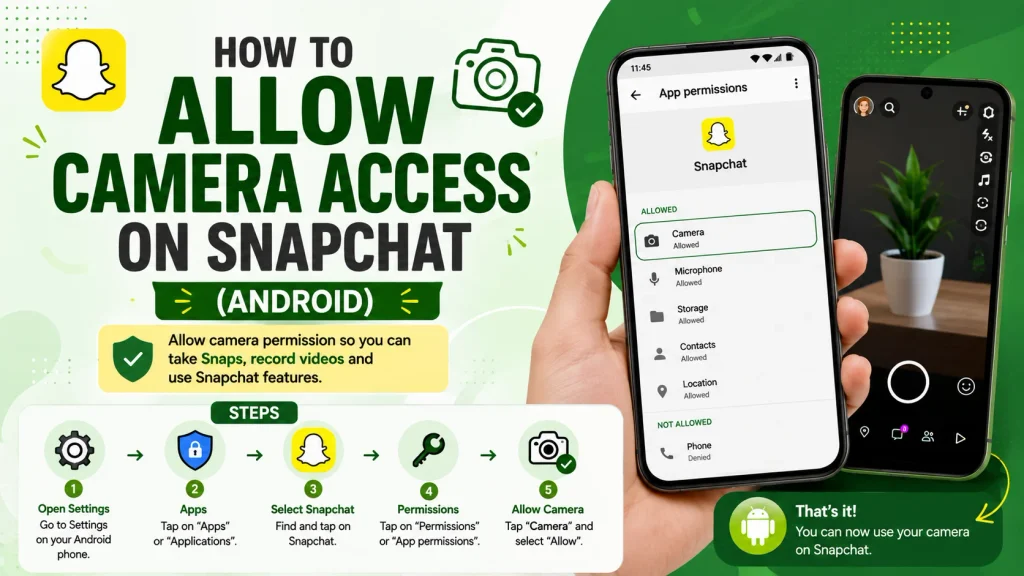
The process on Android follows a similar structure to iPhone, though it’s accessed through Android’s own app permissions menu rather than Apple’s Settings layout.
Steps Through Android Settings
Android’s permission system allows you to manage Snapchat’s camera access directly through your phone’s app settings, which works consistently across most Android devices and brands.
- Open your phone’s Settings app
- Tap on Apps or Application Manager
- Find and select Snapchat from your app list
- Tap on Permissions within the app’s settings page
- Locate the Camera permission specifically
- Select Allow or toggle the permission on
- Return to Snapchat and reopen the camera screen
- Restart the app if the camera still doesn’t load properly
Steps Directly Within the Snapchat App
Just like on iPhone, Android users can often grant camera access directly through an inapp prompt the first time Snapchat requests permission to use the camera.
- Open Snapchat and navigate to the camera screen
- Tap Allow if a permission prompt appears onscreen
- Confirm the live camera preview appears afterward
- If previously denied, no prompt may appear again automatically
- In that case, use the Android Settings method instead
- Uninstalling and reinstalling can also reset this prompt
- Behavior may vary slightly across different Android skins
- Generally the fastest method when the prompt is available
What to Do If Camera Access Is Already On But Still Not Working
Sometimes users find that camera permission is already enabled, yet Snapchat’s camera still won’t load properly, which points to a different underlying issue beyond simple permissions.
Common Reasons the Camera Still Fails
Even with permission granted, several other factors can prevent Snapchat’s camera from working correctly, ranging from software glitches to conflicts with other apps currently using the camera.
- Another app may be actively using the camera simultaneously
- Outdated Snapchat app version causing compatibility issues
- Temporary software glitch within the app itself
- Insufficient phone storage affecting app performance
- Background app conflicts interfering with camera access
- Operating system bugs following a recent update
- Corrupted app cache causing display problems
- Hardware related camera issues unrelated to Snapchat itself
Fixes to Try Next
If permissions are already correctly enabled, a few standard troubleshooting steps usually resolve the remaining camera issues without needing to reinstall the entire app.
- Fully close and reopen the Snapchat app
- Restart your phone to clear temporary glitches
- Update Snapchat to the latest available version
- Close other apps that might be using the camera
- Clear Snapchat’s cache through your phone’s app settings
- Check for pending operating system updates
- Test your camera in another app to rule out hardware issues
- Reinstall Snapchat as a final troubleshooting step
How to Fix Snapchat Can’t Access Camera on Older iPhones
Some users on older iPhone models report recurring or unusual camera access issues with Snapchat, which can require slightly different troubleshooting compared to newer devices.
Known Issues on Older iPhone Models
Older iPhone models, including devices like the 6s, 7, and 8, sometimes experience camera access issues with Snapchat due to limited processing power, outdated iOS compatibility, or aging hardware that struggles with newer app updates.
- Older devices may struggle with newer app update demands
- Limited RAM can cause camera features to fail intermittently
- iOS compatibility gaps grow as devices age over time
- Hardware wear can affect camera responsiveness generally
- App updates increasingly optimized for newer device models
- Older devices may show permission settings inconsistently
- Storage limitations more common on older iPhone models
- Performance issues can mimic permission related camera failures
Updating iOS and the App to Resolve It
For older iPhones specifically, keeping both iOS and the Snapchat app updated to their latest supported versions is typically the most effective way to resolve persistent camera access issues.
- Check for the latest supported iOS version for your device
- Update Snapchat through the App Store if available
- Restart the device after completing any updates
- Free up storage space if updates are being blocked
- Reset camera permissions manually if issues persist
- Consider reinstalling Snapchat after major iOS updates
- Contact Apple support if hardware issues are suspected
- Accept that very old devices may have inherent limitations
Does Allowing Camera Access Affect Other Permissions?
Since Snapchat requests several different permissions beyond just the camera, it’s worth understanding how these separate settings relate to one another.
Camera vs Microphone vs Photos Access
Camera, microphone, and photo access are managed as entirely separate permissions within your phone’s settings, meaning enabling one doesn’t automatically grant or affect the others in any way.
- Camera access controls only photo and video capture
- Microphone access is required separately for audio in videos
- Photos access controls saving to and from your camera roll
- Each permission must be individually enabled or disabled
- Granting camera access alone won’t enable audio recording
- Missing microphone access can cause videos to record silently
- Photos access issues affect saving, not capturing, content
- Managing all three together ensures full app functionality
Managing All Snapchat Permissions Together
For the smoothest experience, it’s worth reviewing all of Snapchat’s requested permissions at once, ensuring camera, microphone, and photo access are all properly configured based on how you plan to use the app.
- Review all permissions together in your phone’s settings
- Enable microphone access if you plan to record videos with sound
- Enable photo access if you want to save or import Snaps
- Location access is separate and unrelated to camera function
- Notifications permission doesn’t affect camera functionality
- Adjusting permissions together avoids repeated troubleshooting
- Recheck permissions after major app or system updates
- Keeps the app fully functional across all its core features
How to Reset All App Permissions If Nothing Else Works
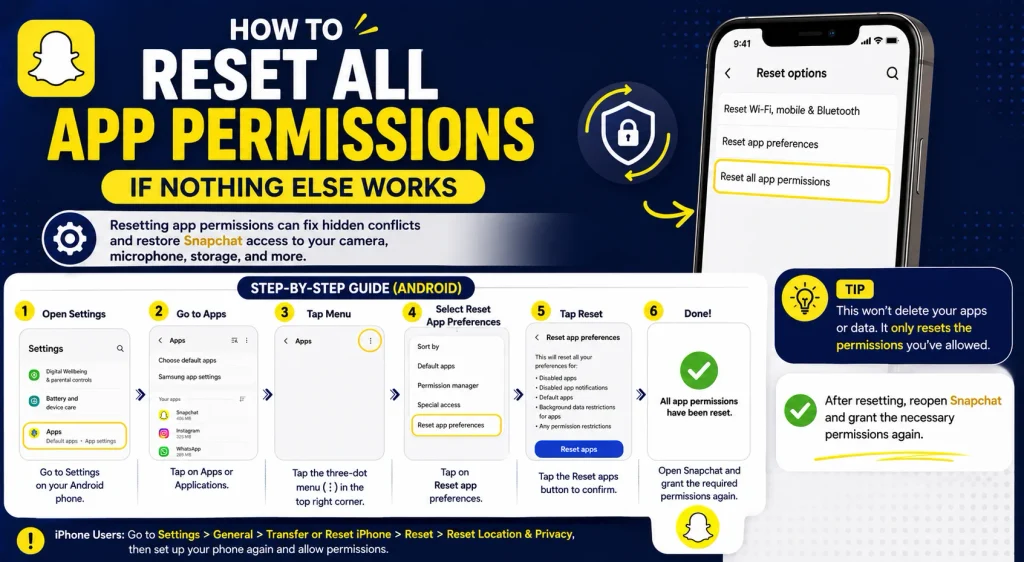
If you’ve tried the standard fixes and Snapchat’s camera still isn’t working, resetting all of the app’s permissions at once can sometimes clear up issues that individual toggles don’t fully resolve.
Resetting Permissions on iPhone
iOS allows you to reset all permission settings across your entire device, which forces every app, including Snapchat, to ask for permissions again from scratch the next time they’re needed.
- Open Settings and go to General
- Scroll down and select Transfer or Reset iPhone
- Tap Reset, then choose Reset Location & Privacy
- Confirm the reset when prompted by your device
- Reopen Snapchat and grant camera access when asked
- This resets permissions for all apps, not just Snapchat
- Useful as a broader troubleshooting step if issues persist
- Doesn’t delete any app data or personal content
Resetting Permissions on Android
On Android, you can reset app preferences more selectively, which clears customized permission settings without affecting your installed apps or personal data.
- Open your phone’s Settings app
- Go to Apps, then tap the menu or three dot icon
- Select Reset app preferences from the available options
- Confirm the reset when prompted by your device
- Reopen Snapchat and grant camera access when requested
- This affects permission defaults for all apps generally
- Doesn’t uninstall apps or delete any saved data
- Effective as a last resort troubleshooting option
Conclusion
Allowing camera access on Snapchat is a quick fix once you know exactly where to look, whether that’s through iPhone or Android’s settings menu or directly through an in app permission prompt. If access is already enabled but the camera still isn’t working, the issue is usually tied to a temporary glitch, another app using the camera, or an outdated version of Snapchat rather than the permission itself. Older iPhone models can occasionally add extra complications, but keeping both iOS and the app updated typically resolves those issues too. With camera, microphone, and photo permissions all properly configured, you’ll have Snapchat’s full camera functionality working exactly as it should.
How do I allow camera access on Snapchat?
Go to your phone’s Settings, find Snapchat, and enable the Camera permission toggle, or tap Allow if a prompt appears within the app.
Why isn’t my camera working on Snapchat even with access allowed?
This is often caused by another app using the camera, an outdated Snapchat version, or a temporary glitch, which usually resolves after restarting the app or phone.
How do I allow camera access on Snapchat on iPhone?
Open iPhone Settings, scroll to Snapchat, and toggle Camera access on, or tap Allow directly if Snapchat prompts you when opening the camera.
Why does Snapchat keep asking for camera permission?
This usually happens if the permission was previously denied or reset, often after an app reinstall, update, or a manual change in your phone’s settings.
Pingback: GTS Meaning on Snapchat | What It Actually Stands For
Pingback: How to Delete Stickers on Snapchat (All Methods Explained)