If you’ve ever wanted to browse Snapchat without your friends seeing exactly where you are on the Snap Map, Ghost Mode is the feature built specifically for that. It’s one of Snapchat’s most useful privacy tools, but a lot of users aren’t entirely sure how it works, what it actually looks like once it’s turned on, or whether it affects other parts of the app like streaks and active status. Adding to the confusion, Snapchat’s settings menu has changed layout a few times over the years, so older tutorials and videos don’t always match what you see on your screen today. In this guide, we’ll walk you through exactly what Ghost Mode is on Snapchat, how it works behind the scenes, what it looks like to you and to others, where to find the settings, how to turn it on and off, and how it interacts with your streaks and active status. Read more articles about Snapplanets.
What Is Ghost Mode on Snapchat?
Ghost Mode is Snapchat’s builtin privacy setting that controls whether your location appears on the Snap Map, and understanding exactly what it does and doesn’t affect is the first step to using it confidently. Before diving into the technical setup, it helps to separate what Ghost Mode actually changes from what many users assume it changes, since a lot of the confusion around this feature comes from mixing it up with broader privacy or blocking settings.
Ghost Mode Meaning Explained
Ghost Mode is a privacy feature that hides your live location from friends on Snap Map, without affecting any other part of your account, such as your ability to send snaps, view stories, or chat with friends. It’s purely a locationsharing control rather than a broader privacy or invisibility setting.
- Hides your live location from Snap Map specifically
- Doesn’t affect your ability to send or receive snaps
- Doesn’t hide your stories or story views from friends
- Doesn’t block or restrict any of your friends
- Doesn’t prevent others from messaging you
- Purely controls location visibility, nothing else
- Can be turned on or off at any time
- Available to all Snapchat users at no extra cost
- Works independently of your friend or blocking lists
- Different from deactivating or deleting your account
What Ghost Mode Does on Snap Map
Specifically on Snap Map, Ghost Mode removes your Bitmoji avatar and location marker from the map entirely, meaning friends who open Snap Map won’t see where you currently are, even if they were previously able to see your location before you turned it on.
- Removes your avatar from the Snap Map entirely
- Prevents friends from seeing your current location
- Applies to all friends, not just select individuals
- Doesn’t notify friends that you’ve enabled it
- Takes effect immediately once turned on
- Works the same whether you’re moving or stationary
- Doesn’t affect friends’ ability to share their own location
- Can be combined with specific friend visibility settings
- Applies across all devices linked to your account
- Reverses immediately once Ghost Mode is turned off
How Does Ghost Mode Work on Snapchat?
Understanding how Ghost Mode functions technically helps clarify what happens to your location data once it’s activated, especially since many users wonder whether their location is truly hidden or just temporarily paused in a way that could still be visible under certain conditions.
What Happens to Your Location When It’s On
Once Ghost Mode is active, Snapchat stops updating and sharing your live location with friends on Snap Map, effectively pausing the location sharing feature without deleting your account’s location history or affecting other app functions.
- Live location updates stop being shared with friends
- Your Bitmoji disappears from the shared Snap Map view
- Location sharing pauses rather than being deleted
- Doesn’t affect Snapchat’s own use of location for features
- Other app functions continue working completely normally
- Location resumes updating once Ghost Mode is turned off
- Doesn’t require closing or logging out of the app
- Works whether you’re using WiFi or mobile data
- Doesn’t affect location based filters or lenses
- Applies instantly across the app once toggled on
Does Ghost Mode Show Your Last Location?
A common concern is whether friends can still see your last known location even after Ghost Mode is enabled, but in practice, turning it on removes your marker from the map entirely rather than freezing it at your most recent spot.
- Your marker disappears rather than freezing in place
- Friends cannot see a “last known” location after activation
- No timestamp or location history remains visible to others
- Differs from apps that show a frozen lastseen location
- Applies immediately once the setting is toggled on
- No delay period where your old location lingers
- Consistent across iPhone and Android devices
- Doesn’t matter how recently you were last active
- Friends see a blank space where your avatar used to be
- Location only reappears once you manually disable it
View more articles :
- How to Turn Off Snapchat Spotlight Notifications
- What Does FML Stand For
- GTS Meaning on Snapchat
- What Do Snap Planets Mean
- What Does DND Mean on Snapchat
- How to See Who Screenshotted Your Snapchat Story
- Ghost Mode on Snapchat
- How to Make a Public Profile on Snapchat
- WTM Meaning on Snapchat
- How to Half Swipe on Snapchat
What Does Ghost Mode Look Like on Snapchat?
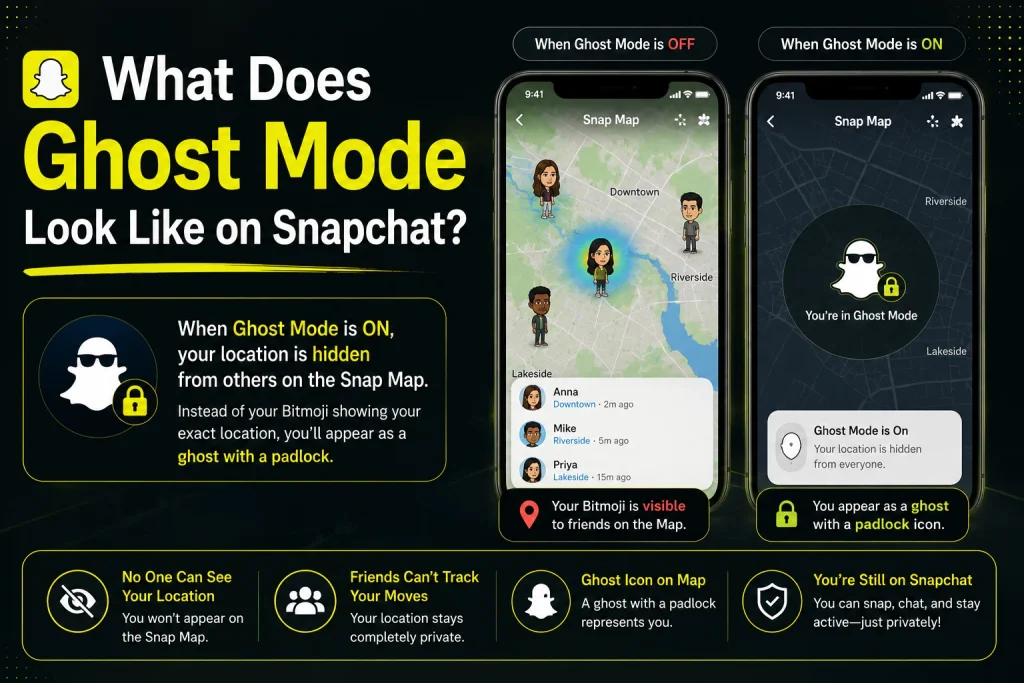
Since Ghost Mode changes how your presence appears on Snap Map, it’s helpful to understand exactly what changes visually, both from your own perspective and from the perspective of the friends viewing the map, since these two views aren’t identical.
How It Appears on Your Own Snap Map
From your own account, turning on Ghost Mode changes your Bitmoji icon on the map to reflect that the feature is active, giving you a clear visual confirmation that your location is currently hidden from others.
- Your Bitmoji icon changes to indicate Ghost Mode is active
- A small ghost icon typically appears near your avatar
- Settings menu confirms Ghost Mode status clearly
- You can still view friends’ locations normally
- Your own map view remains fully functional otherwise
- No restrictions apply to browsing the map yourself
- Confirmation appears immediately after toggling it on
- Icon reverts back once Ghost Mode is disabled
- Visual cues help avoid uncertainty about current status
- Same visual indicator appears across supported devices
What Ghost Mode Looks Like to Others
From a friend’s perspective, your avatar simply disappears from their view of the Snap Map, with no explanation, icon, or notification indicating that you’ve turned on Ghost Mode specifically.
- Your avatar disappears completely from their map view
- No notification is sent informing them you enabled it
- No ghost icon or label appears on their end
- They cannot tell whether you’re using the app currently
- Appears the same as if you never shared location at all
- No difference shown between new and longtime Ghost Mode use
- Friends can’t request or ask to bypass this setting
- Other parts of your profile remain visible as normal
- Chat and story activity remain completely unaffected
- Their own location sharing is not impacted either way
Where to Find Ghost Mode Settings on Snapchat
Because Snapchat’s settings menu has been redesigned a few times, knowing the current, correct path to Ghost Mode settings can save you from digging through outdated tutorials or unrelated menus that no longer match the app’s layout.
Accessing Settings From Snap Map
The most direct way to reach Ghost Mode settings is through the Snap Map itself, where a dedicated settings icon opens location specific controls, including the Ghost Mode toggle.
- Open Snapchat and swipe to open Snap Map
- Tap the settings gear icon in the top corner
- Locate the Ghost Mode toggle within this menu
- Confirm your current sharing status is displayed here
- Adjust visibility settings directly from this same screen
- Access friend specific sharing options in this menu too
- Changes made here apply immediately after confirming
- Menu also displays your current location status
- Works the same way across iPhone and Android
- Serves as the fastest route to location settings overall
Accessing Settings From Your Profile Icon
Alternatively, Ghost Mode settings can also be reached through your main profile and account settings, which is useful if you’re already navigating your broader privacy or account preferences.
- Tap your profile icon in the top left of the app
- Tap the settings gear icon on your profile screen
- Scroll down to find location or Snap Map settings
- Select the option related to Ghost Mode specifically
- Toggle Ghost Mode on or off from this screen
- Review other privacy settings while you’re in this menu
- Confirm changes are saved before exiting settings
- Useful alternative if Snap Map access feels less familiar
- Provides access to related privacy controls nearby
- Leads to the same underlying setting as the Map route
How to Turn On Ghost Mode on Snapchat
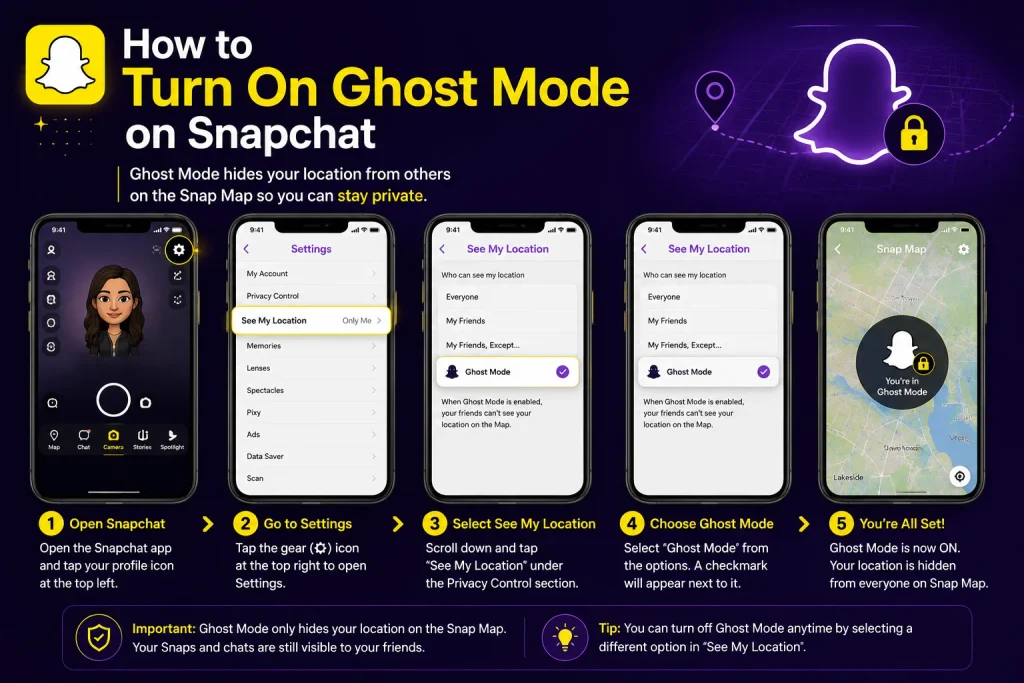
With the settings location clear, turning on Ghost Mode itself only takes a few taps, and Snapchat also gives you the option to control exactly how long it stays active before automatically reverting.
StepbyStep Instructions
Turning on Ghost Mode follows a simple, consistent process regardless of which settings path you used to get there, making it one of the more straightforward privacy features to activate on the app.
- Open Snap Map or your profile settings menu
- Locate the Ghost Mode toggle within the location settings
- Tap the toggle switch to activate Ghost Mode
- Confirm the ghost icon appears next to your Bitmoji
- Verify your avatar disappears from the shared map view
- Check that the setting shows as active in your menu
- Close the settings menu once confirmed active
- Test by asking a friend to check their Snap Map
- Repeat the process anytime you want to reactivate it
- No additional confirmation or password is required
Setting a Time Limit for Ghost Mode
Snapchat also allows you to choose how long Ghost Mode remains active, letting you set it for a specific duration rather than leaving it on indefinitely if you only need temporary privacy.
- Select a duration option after enabling Ghost Mode
- Choose from preset options like a few hours or a day
- Alternatively, select the option to keep it on until turned off
- Timer automatically disables Ghost Mode once it expires
- Location sharing resumes automatically when the timer ends
- Adjust or extend the timer manually if needed
- Useful for temporary privacy during specific situations
- Avoids forgetting to manually turn the feature back off
- Timer settings can be changed at any point while active
- Provides flexibility between shortterm and longterm use
How to Turn Off Ghost Mode on Snapchat
Disabling Ghost Mode is just as simple as turning it on, and Snapchat also gives you more granular options if you’d rather share your location with only specific friends instead of everyone at once.
Steps to ReEnable Location Sharing
Turning off Ghost Mode restores your location visibility on Snap Map, following essentially the reverse of the same steps used to activate it in the first place.
- Open Snap Map or your profile settings menu
- Locate the currently active Ghost Mode toggle
- Tap the toggle to switch Ghost Mode off
- Confirm your Bitmoji reappears on the shared map
- Verify the ghost icon disappears from your avatar
- Check that friends can once again see your location
- Location updates resume shortly after disabling it
- No waiting period is required for this to take effect
- Works the same regardless of how long it was active
- Can be turned back on again at any time afterward
Choosing Who Can See Your Location Instead
Rather than sharing your location with everyone once Ghost Mode is off, Snapchat allows you to customize visibility on a friend by friend basis for more balanced privacy control.
- Access friend specific sharing settings from Snap Map
- Choose to share with all friends or select individuals
- Exclude specific friends from seeing your location
- Adjust these settings independently of Ghost Mode itself
- Combine selective sharing with Ghost Mode for more control
- Update your friend list preferences at any time
- Review current sharing settings periodically for accuracy
- Useful for maintaining privacy from certain contacts only
- Doesn’t require turning Ghost Mode on to limit visibility
- Provides a middle ground between full sharing and hiding
How to Pause Snapchat Location Without Using Ghost Mode
If you don’t want to fully commit to Ghost Mode but still want a break from sharing your location, Snapchat offers alternative ways to temporarily pause visibility without changing your broader sharing settings.
Temporary Location Sharing Options
Snapchat’s location settings include options that let you pause sharing your location temporarily, which functions similarly to Ghost Mode but may be framed differently depending on your app version and settings layout.
- Adjust location sharing duration directly within settings
- Select a shorter time frame instead of permanent sharing
- Pause sharing without fully committing to Ghost Mode
- Location resumes automatically once the pause period ends
- Useful for short outings where privacy is only temporary
- Avoids needing to remember to manually turn settings back on
- Works well for one off situations rather than ongoing use
- Settings remain saved for future adjustments as needed
- Doesn’t require altering your permanent friend visibility list
- Provides flexibility without a long term privacy commitment
Difference Between Pausing and Full Ghost Mode
While both options limit who sees your location, pausing is typically more temporary and appguided, whereas Ghost Mode is a dedicated, more deliberate toggle meant for ongoing or intentional privacy.
- Pausing is often shorter and more automatic by design
- Ghost Mode is a deliberate, manually controlled setting
- Both stop your location from appearing on the map
- Ghost Mode offers more explicit duration customization
- Pausing may reset more quickly without manual input
- Ghost Mode provides a clearer on/off visual indicator
- Either option achieves the same core privacy outcome
- Choice depends on how long you want privacy to last
- Both can be combined with friend specific sharing settings
- Neither option affects other Snapchat features or activity
Does Ghost Mode Affect Your Active Status or Streaks?
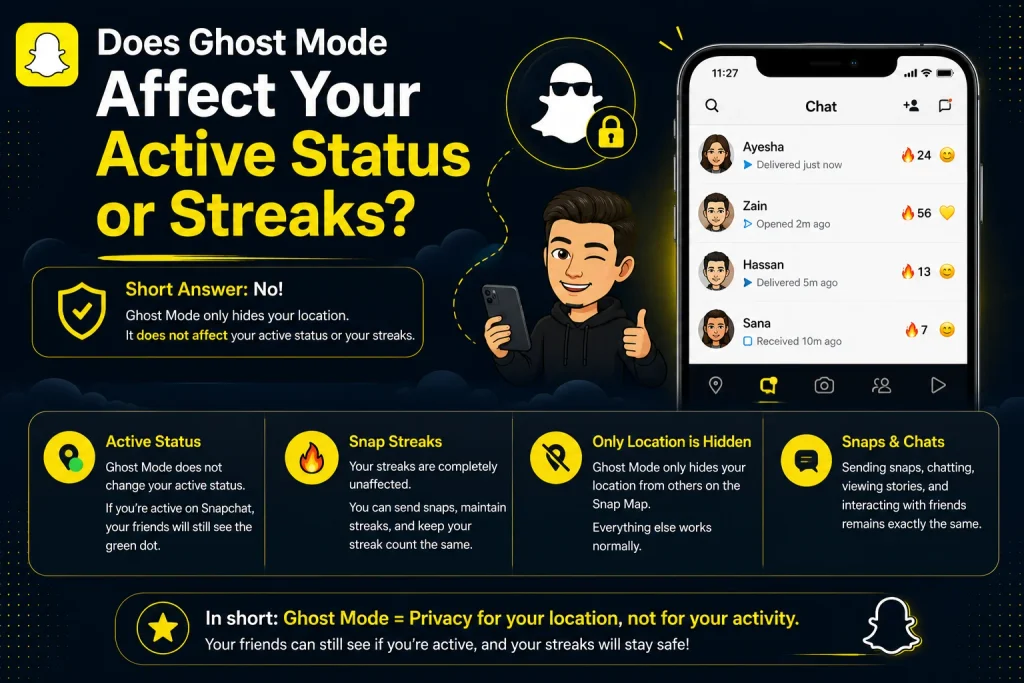
Beyond location privacy, many users want to know whether enabling Ghost Mode has any ripple effects on other parts of their Snapchat experience, particularly features tied to activity and ongoing streaks with friends.
Active Status While in Ghost Mode
Ghost Mode does not hide your active status or online presence within chats, meaning friends can still see if you’re active or recently online even while your location remains hidden on the map.
- Active status remains visible regardless of Ghost Mode
- Friends can still see when you’re online in chats
- Doesn’t hide typing indicators during conversations
- Doesn’t affect read receipts or opened snap indicators
- Location and activity status are controlled separately
- Being online doesn’t reveal your specific location
- No connection between chat activity and map visibility
- Applies the same way across all conversation types
- Doesn’t require additional settings to manage separately
- Ghost Mode focuses exclusively on mapbased location data
Impact on Snap Streaks and Messaging
Ghost Mode has no effect on Snap streaks or your ability to send and receive messages, since streaks are based purely on snap exchanges rather than any location sharing settings.
- Streaks continue normally regardless of Ghost Mode status
- Sending and receiving snaps works exactly the same
- No interruption to ongoing conversations or chats
- Group chats remain fully functional and unaffected
- Streak requirements are based solely on snap activity
- Location visibility has no bearing on streak calculations
- Messaging features work identically with Ghost Mode on
- No warnings or restrictions apply to active conversations
- Friends remain unaware of Ghost Mode through messaging alone
- Only the Snap Map location marker is affected overall
Conclusion
Ghost Mode is a simple but powerful privacy feature on Snapchat that hides your location from Snap Map without affecting any other part of your account, including snaps, chats, stories, streaks, or your active status. Whether you’re looking to hide your location permanently, set a temporary timer, or just pause sharing for a short outing, Snapchat gives you flexible options to match exactly the level of privacy you need. Now that you know exactly where to find the setting, what it looks like to both you and your friends, and how it interacts with the rest of the app, you can use Ghost Mode with full confidence and no leftover confusion.
What is Ghost Mode on Snapchat?
Ghost Mode is a privacy setting that hides your live location from friends on Snap Map, without affecting snaps, chats, or stories in any way.
How do I turn on Ghost Mode on Snapchat?
Open Snap Map or your profile settings, find the Ghost Mode toggle under location settings, and tap it to activate location privacy.
Does Ghost Mode show your last location?
No, your avatar disappears completely from the map rather than freezing at your last known location once Ghost Mode is enabled.
What does Ghost Mode look like to others?
To friends, your avatar simply disappears from Snap Map with no notification, icon, or explanation indicating that you’ve turned it on.
Pingback: Can You Have Multiple Yellow Hearts on Snapchat