If your phone keeps buzzing with Snapchat alerts about Spotlight videos, comments, or trending content you never asked to follow, you’re not alone in wanting to shut that off. Spotlight is Snapchat’s short video discovery feed, similar to TikTok’s For You page, and it comes with its own set of notifications that are often more frequent and less relevant than alerts from actual friends. A lot of users only discover how noisy these notifications can get after they’ve already started posting or interacting with Spotlight content, and by then, the constant pings from likes, comments, and trending videos start to feel overwhelming. In this guide, we’ll walk you through exactly how to turn off Snapchat Spotlight notifications, how to manage notifications more broadly on both iPhone and Android, and what to do if you’re either getting too many notifications or suddenly not getting any at all. Read more articles about Snapplanets.
What Are Snapchat Spotlight Notifications?
Spotlight notifications are a specific category of alerts tied to Snapchat’s short video discovery feature, separate from the notifications you get for regular snaps, chats, or stories from friends. Because Spotlight is designed to surface trending content from a wide range of creators, its notification system tends to trigger far more often than friendbased alerts. Many users don’t realize these notifications exist as a distinct category until they’ve already started scrolling through Spotlight regularly. Understanding exactly what triggers them makes it much easier to know which specific settings actually need to be adjusted. Without this context, people often end up disabling the wrong notification category entirely. Getting this distinction clear from the start saves a lot of unnecessary trial and error later in the settings menu.
Why Snapchat Sends These Notifications
Snapchat sends Spotlight notifications primarily to encourage continued engagement with the feature, alerting you to likes, comments, replies, and trending videos related to content you’ve posted or interacted with previously.
- Designed to encourage ongoing engagement with Spotlight
- Triggered by likes, comments, and replies on your posts
- Sent when trending videos match your viewing history
- Can activate simply from browsing Spotlight occasionally
- More frequent than standard friend based notifications
- Not always clearly separated from other alert types
- Increases the more actively you use the Spotlight feed
- Designed to pull you back into the app repeatedly
Types of Spotlight Notifications You Might Get
Spotlight notifications can cover several different triggers, including comments on your own posted content, replies to those comments, and general recommendations based on your viewing habits within the feed.
- Comments left on Spotlight videos you’ve posted
- Replies to comments you’ve left on others’ videos
- Likes or reactions on your submitted Spotlight content
- Recommended trending videos based on your activity
- Notifications about your video’s performance or views
- Alerts related to Spotlight challenges or trends
- Mentions if someone tags you in Spotlight content
- General reengagement prompts to open the feed again
View more articles :
- How to Turn Off Snapchat Spotlight Notifications
- What Does FML Stand For
- GTS Meaning on Snapchat
- What Do Snap Planets Mean
- What Does DND Mean on Snapchat
- How to See Who Screenshotted Your Snapchat Story
- Ghost Mode on Snapchat
- How to Make a Public Profile on Snapchat
- WTM Meaning on Snapchat
- How to Half Swipe on Snapchat
How to Turn Off Snapchat Spotlight Notifications
Turning off these notifications is handled directly within Snapchat’s own notification settings, separate from your phone’s broader systemlevel controls. Snapchat groups its notification categories together, so Spotlight related alerts sit alongside other content types rather than in a completely isolated menu. This means the process involves navigating to a specific section rather than a single obvious toggle on the main settings screen. Once you know exactly where to look, disabling them only takes a few taps. It’s also worth noting that Snapchat occasionally shifts the layout of this menu with app updates, so the exact wording of options may vary slightly. Still, the underlying path through account and notification settings remains largely consistent across recent versions of the app.
Steps Within the Snapchat App
Disabling Spotlight notifications specifically requires navigating through Snapchat’s notification settings menu, where you can toggle off the relevant categories tied to Spotlight activity.
- Open Snapchat and tap your Bitmoji or profile icon
- Tap the gear icon to open Settings
- Scroll down and select Notifications
- Look for Spotlight related notification categories
- Toggle off options related to Spotlight likes and comments
- Toggle off trending or recommended video alerts if listed
- Confirm changes are saved before exiting the menu
- Restart the app to ensure settings apply correctly
Turning Off Spotlight Comment Notifications Specifically
If you only want to stop notifications for comments on your Spotlight posts while keeping other alerts active, Snapchat allows more granular control over this specific notification type.
- Open Settings and navigate to Notifications
- Look specifically for the Spotlight comments option
- Toggle this setting off while leaving others enabled
- Confirm other Spotlight categories remain as preferred
- Useful if you still want to see likes or trending alerts
- Doesn’t require disabling all Spotlight notifications at once
- Changes apply immediately after toggling the setting
- Revisit this setting anytime to adjust further
How to Turn Off Snapchat Notifications on iPhone
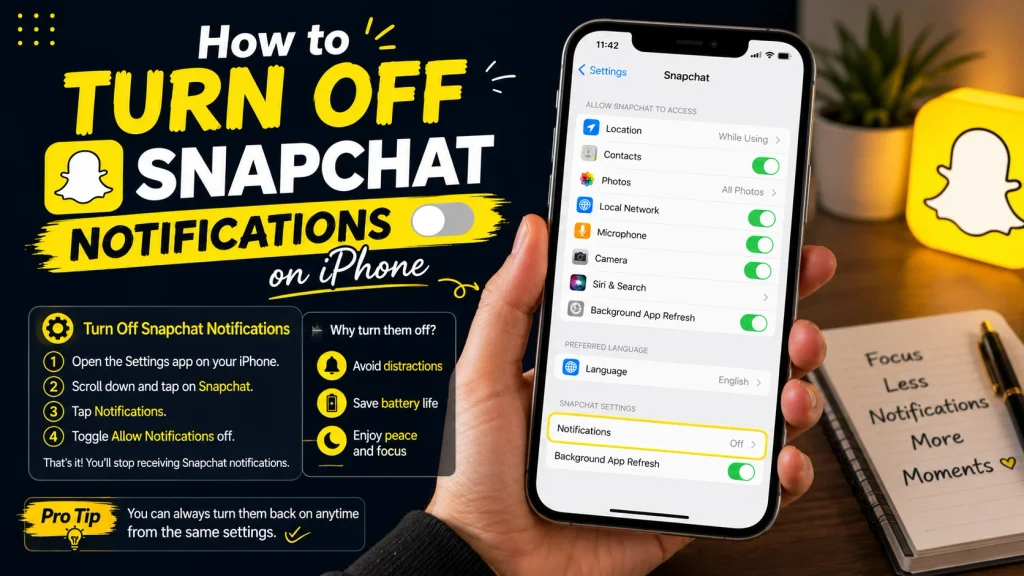
Beyond the in app settings, iPhone users have an additional layer of control through the device’s own notification system, which works independently of what’s configured inside Snapchat itself. This system level control becomes especially useful if in app settings alone don’t fully stop the notifications you’re trying to avoid. iOS allows you to disable specific alert types, like banners or sounds, without necessarily turning off notifications from the app entirely. This gives you a more flexible middle ground between full notifications and none at all. Since Snapchat and iOS settings work as two separate layers, checking both is often necessary for a truly quiet experience. Relying on just one of the two rarely solves persistent notification issues completely.
Through Snapchat’s InApp Settings
The first layer of control remains within Snapchat’s own app, following the same notification settings path already covered for disabling Spotlight specific alerts.
- Open Snapchat and go to Settings
- Tap Notifications from the settings menu
- Review all listed notification categories carefully
- Disable Spotlight and any other unwanted categories
- Save changes before leaving the settings screen
- Close and reopen the app afterward
- Confirm notifications have reduced as expected
- Revisit periodically after future app updates
Through iPhone System Settings
For more complete control, iPhone’s own Settings app allows you to adjust how Snapchat notifications behave at the system level, independent of the app’s internal settings.
- Open the iPhone Settings app
- Scroll down and tap on Snapchat
- Tap Notifications within Snapchat’s settings page
- Adjust alert styles, banners, sounds, or badges as needed
- Turn off notifications entirely here if preferred
- Use Focus Mode to silence notifications during specific times
- Changes here apply regardless of in app Snapchat settings
- Test notifications afterward to confirm the desired result
How to Turn Off Snapchat Notifications on Android
Android users face a similar two layer system, combining Snapchat’s own settings with Android’s broader app notification controls. Because Android manufacturers customize their notification systems slightly differently, the exact menu wording can vary a bit between phone brands. Despite these small differences, the overall structure remains largely the same across most devices. Just like on iPhone, adjusting only the in app settings sometimes isn’t enough to fully quiet things down. Checking both Snapchat’s internal settings and your phone’s system level notification permissions typically resolves any lingering issues. This combined approach tends to give the most reliable, lasting result.
Through Snapchat’s InApp Settings
As with iPhone, the first step on Android involves adjusting Snapchat’s own notification settings to disable Spotligh trelated alerts specifically.
- Open Snapchat and tap your profile icon
- Tap the Settings gear icon
- Select Notifications from the settings list
- Locate and disable Spotligh trelated notification options
- Confirm your changes are saved properly
- Close and reopen the app to apply updates
- Check your notification shade to confirm changes
- Repeat if any Spotlight alerts continue appearing
Through Android System Settings
For a more complete fix, Android’s own app settings menu lets you control Snapchat notifications at the device level, offering finer control than the in app settings alone.
- Open your phone’s Settings app
- Tap Apps, then select Snapchat
- Tap Notifications within the app’s settings page
- Toggle off specific notification categories as needed
- Turn off all notifications here if preferred entirely
- Use Do Not Disturb settings for scheduled quiet times
- Changes here override in app settings when stricter
- Confirm results by testing after adjustments are made
How to Turn Off Snapchat Story Notifications Too
Since Spotlight and Story notifications are often grouped together by users trying to reduce overall app noise, it’s worth covering how to manage storyrelated alerts as well. Many people searching for ways to quiet Spotlight notifications end up wanting to reduce story notifications at the same time, since both can feel equally repetitive throughout the day. Fortunately, Snapchat treats these as separate categories, meaning you can adjust one without necessarily affecting the other. This separation gives you the flexibility to keep some notifications active while muting others entirely. Knowing where each control lives prevents the common mistake of disabling more than intended. Together, these settings let you finetune exactly which parts of Snapchat stay quiet.
Disabling Story Post Alerts
Turning off notifications for when friends post new stories follows a similar path through Snapchat’s notification settings, separate from the Spotlightspecific toggles.
- Open Settings and go to Notifications
- Locate the Storyrelated notification section
- Toggle off alerts for new story posts
- Confirm the change applies across your friend list
- Doesn’t affect Spotlight settings adjusted separately
- Can be reenabled anytime through the same menu
- Applies to both close friends and general contacts
- Test by having a friend post a new story afterward
Managing Notifications From Specific Friends
For more targeted control, Snapchat also allows you to mute story notifications from specific individuals rather than turning them off entirely for everyone.
- Open the Stories tab within Snapchat
- Find the specific friend’s story you want to mute
- Tap and hold on their story thumbnail
- Select the mute or notification option from the menu
- Confirm muting for that specific friend only
- Other friends’ story notifications remain unaffected
- Useful for muting frequent posters without losing others
- Unmute anytime through the same story menu
Why Am I Not Getting Snapchat Notifications At All?
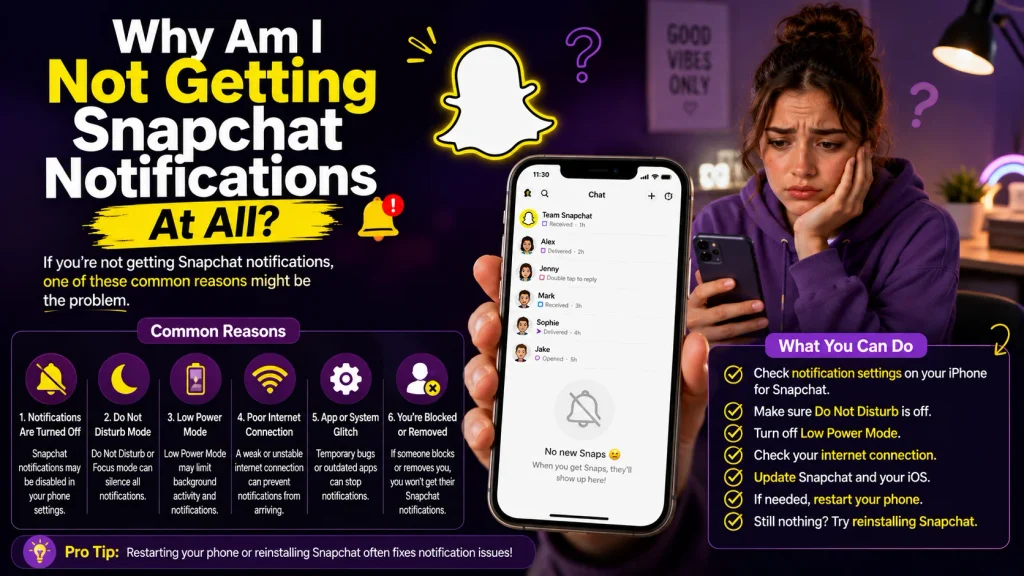
On the opposite end, some users run into the reverse problem, where they’re not receiving any Snapchat notifications despite wanting them, often after adjusting settings incorrectly while trying to reduce Spotlight alerts. This typically happens when broader notification categories get accidentally disabled instead of the specific Spotlight settings originally intended. Since Snapchat and phonelevel settings interact closely, a change in one place can unintentionally affect notifications more broadly than expected. This is a common mistake, especially when settings menus aren’t fully explored before changes are made. Fortunately, this issue is usually simple to trace and fix once you know where to check. Reviewing both applevel and systemlevel settings together typically resolves it quickly.
Common Reasons Notifications Stop Working
Missing notifications altogether usually stems from a broader setting being disabled by accident, an outdated app version, or a system level restriction unrelated to Spotlight specifically.
- Accidentally disabling all notifications instead of just Spotlight
- Phone’s Do Not Disturb or Focus Mode being active
- Outdated Snapchat app version causing display issues
- Background app restrictions limiting notification delivery
- Battery optimization settings restricting app activity
- Notification permissions revoked at the system level
- Poor internet connection delaying notification delivery
- App needing a restart to properly refresh settings
How to Fix It
Restoring notifications typically involves retracing your steps through both Snapchat’s settings and your phone’s system settings to identify what was changed.
- Recheck Snapchat’s in app notification settings first
- Confirm system level notifications are enabled for the app
- Turn off Do Not Disturb or adjust Focus Mode exceptions
- Update Snapchat to the latest available version
- Restart your phone to refresh notification permissions
- Disable battery optimization restrictions for Snapchat
- Test with a friend sending a snap to confirm delivery
- Reinstall the app as a last resort if issues persist
Conclusion
Turning off Snapchat Spotlight notifications comes down to navigating Snapchat’s own notification settings, where you can disable specific categories like comments, likes, and trending video alerts without affecting notifications from friends. For more complete control, especially if in app changes aren’t enough, adjusting your phone’s systemlevel notification settings on iPhone or Android adds an extra layer of control. If you accidentally end up with no notifications at all, the fix usually involves retracing these same settings to find what got disabled along the way. With both Snapchat’s app settings and your device’s notification controls working together, you can finetune exactly which alerts you want to keep and which ones you’d rather leave off for good.
How do I turn off Spotlight notifications on Snapchat?
Go to Settings, tap Notifications, and toggle off the categories related to Spotlight likes, comments, and trending video alerts.
How do I turn off Spotlight comment notifications?
Within Snapchat’s Notifications settings, find the Spotlight comments option specifically and toggle it off while leaving other categories active if preferred.
Why am I not getting Snapchat notifications?
This is often caused by an accidentally disabled setting, Do Not Disturb being active, an outdated app version, or restricted background app permissions.
Can I turn off notifications from specific friends only?
Yes, you can mute story notifications from individual friends without affecting your overall notification settings for everyone else.
Pingback: Can You Have Multiple Yellow Hearts on Snapchat
Pingback: Ghost Mode on Snapchat | What It Is & How to Turn It On
Pingback: How to Half Swipe on Snapchat | StepbyStep Guide
Pingback: WTM Meaning on Snapchat | What It Really Stands For
Pingback: How to Allow Camera Access on Snapchat (iPhone & Android)
Pingback: What Does a Yellow Heart Mean on Snapchat? Full Explanation
Pingback: How Do I Know If Someone Blocked Me on Snapchat?
Pingback: What Does HRU Mean in Text? Full Meaning & How to Reply
Pingback: What Does the Purple Circle Mean on Snapchat?
Pingback: How to Tell If Someone Has Snapchat Plus (All Signs)