If you’ve ever wanted to peek at a snap or message on Snapchat without the sender knowing you’ve opened it, half swiping is the trick you’re looking for. It’s one of Snapchat’s most talked about hidden features, often referred to as PeekaPeek, and it lets you preview content without triggering the opened notification the other person would normally see. Most tutorials on this topic are scattered across YouTube and TikTok videos, making it hard to find a clear, written explanation of exactly how it works across different devices. In this guide, we’ll walk you through how to half swipe on Snapchat step by step, on iPhone, Android, and computer, along with how it works with the latest update, whether it’s tied to Snapchat Plus, and what the other person can actually see when you do it. Read more articles about Snapplanets.
What Is Half Swiping on Snapchat?
Half swiping is a technique that lets you view part of a snap or message without fully opening it, which is why it’s sometimes called peeking at a snap.
How Half Swipe Works (PeekaPeek Explained)
Half swiping, officially referred to by Snapchat as PeekaPeek, works by pressing and holding on a chat or snap just enough to reveal a preview, without releasing far enough to fully open it. This lets you glimpse the content while keeping the message marked as unopened for the sender.
- Involves pressing and holding on a snap or message
- Reveals a partial preview without fully opening it
- Officially called PeekaPeek by Snapchat
- Keeps the snap marked as unopened for the sender
- Works differently from a normal tap to open action
- Requires a specific touch and hold technique to work
- Available across most recent versions of the app
- Doesn’t require any special settings to activate
Why People Use It
People use half swiping for a variety of reasons, most commonly to preview content before deciding whether to open it fully, without the sender knowing they’ve already seen part of it.
- Previewing a snap before deciding to open it fully
- Avoiding triggering opened notifications right away
- Reading part of a message without committing to a reply
- Checking group chat activity discreetly
- Managing streaks without officially opening snaps
- Screening messages before responding to someone
- Keeping conversations more private and lowpressure
- Satisfying curiosity without revealing you’ve seen it
How to Half Swipe on Snapchat (iPhone & Android)
The core half swipe technique works similarly across both iPhone and Android, though small differences in touch sensitivity can affect how it feels on each device.
StepbyStep on iPhone
On iPhone, half swiping relies on a precise touch and hold motion that stops just short of a full open, which can take a little practice to get right.
- Open the Snapchat chat screen with the snap or message
- Press and hold your finger on the chat thumbnail
- Slowly drag slightly without releasing your finger
- Stop dragging once a small preview becomes visible
- Avoid swiping too far, which will fully open it
- Release your finger carefully to close the preview
- Practice on a test chat to get the timing right
- Update the app if the preview doesn’t appear correctly
StepbyStep on Android / Samsung
On Android and Samsung devices, the same technique applies, though some users report needing a slightly firmer or slower hold due to differences in touchscreen sensitivity.
- Open the chat screen containing the snap or message
- Press and hold on the chat thumbnail with steady pressure
- Slightly drag your finger to reveal a partial preview
- Keep your finger steady once the preview appears
- Release slowly without swiping further into the chat
- Retry with lighter pressure if it opens fully by accident
- Test on Samsung and other Android skins separately
- Make sure your Snapchat app is fully updated first
View more articles :
- How to Turn Off Snapchat Spotlight Notifications
- What Does FML Stand For
- GTS Meaning on Snapchat
- What Do Snap Planets Mean
- What Does DND Mean on Snapchat
- How to See Who Screenshotted Your Snapchat Story
- Ghost Mode on Snapchat
- How to Make a Public Profile on Snapchat
- WTM Meaning on Snapchat
- How to Half Swipe on Snapchat
How to Half Swipe on Snapchat Web & Computer
Half swiping isn’t limited to mobile devices it can also be done through Snapchat’s web version or the desktop app, though the method relies on a mouse instead of touch.
Half Swiping on Snapchat Web (Browser)
On Snapchat Web, accessed through a browser, half swiping uses a click and hold method with your mouse instead of a finger swipe, mimicking the same partial preview effect.
- Open Snapchat Web and log into your account
- Locate the chat containing the snap or message
- Click and hold your mouse button on the thumbnail
- Slightly move the cursor to trigger a preview
- Avoid a full click, which opens the snap completely
- Release the mouse button carefully to exit the preview
- Use a stable internet connection for smoother response
- Refresh the browser if the preview doesn’t load properly
Half Swiping on Laptop (App Version)
If you’re using the Snapchat desktop app rather than the browser version, the process is nearly identical, relying on the same click and hold approach with your trackpad or mouse.
- Open the Snapchat desktop app and sign in
- Find the relevant chat in your conversation list
- Click and hold on the snap or message preview
- Drag slightly using your trackpad or mouse
- Watch for the partial preview to appear on screen
- Release gently without completing a full click
- Adjust trackpad sensitivity if it opens too easily
- Restart the app if the feature doesn’t respond
How to Half Swipe With the New Snapchat Update
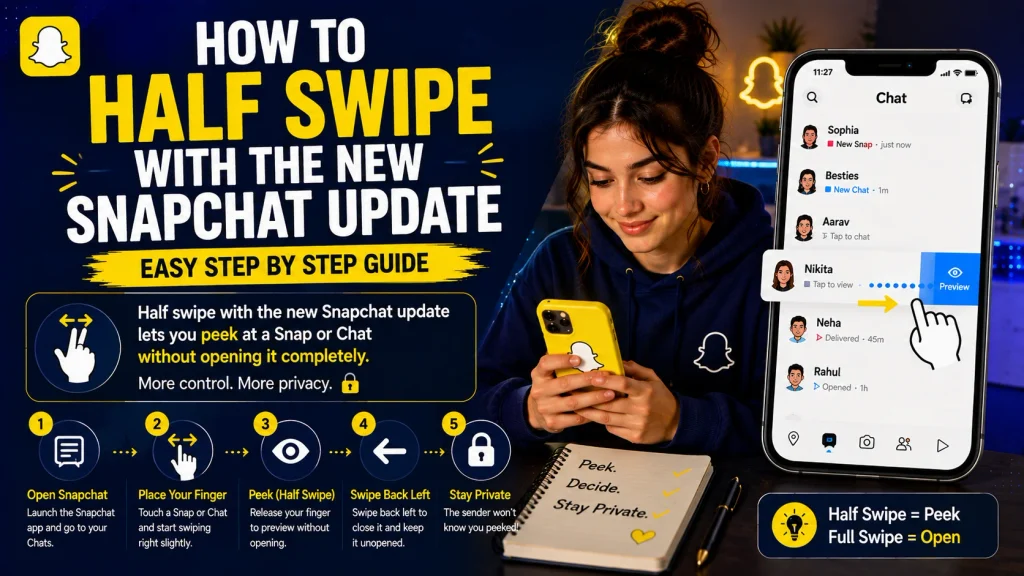
Snapchat regularly updates its app, and these updates occasionally change how features like half swiping behave or where they’re accessible.
What Changed With the Latest Update
With recent updates, some users have reported that the half swipe gesture requires slightly more precision than before, or that it behaves differently within redesigned chat interfaces following interface changes.
- Chat interface redesigns can shift gesture sensitivity
- Some updates require a slower, more deliberate hold
- New animations may briefly delay the preview appearing
- Interface changes can move where you need to press
- Snap Map and chat redesigns sometimes affect the gesture
- App performance updates can change response timing
- Beta versions may behave differently than stable releases
- Checking release notes helps identify recent changes
How to Get Half Swipe Back If It’s Missing
If half swiping suddenly stops working after an update, there are a few troubleshooting steps that typically resolve the issue without needing to wait for another update.
- Update Snapchat to the latest available version
- Restart your phone to clear temporary glitches
- Clear the app’s cache from your device settings
- Log out and log back into your Snapchat account
- Reinstall the app if the issue continues persisting
- Practice the gesture timing again, as it may have shifted
- Check community forums for known updaterelated bugs
- Contact Snapchat support if the feature remains unavailable
How to Half Swipe a Message vs a Picture/Snap
The half swipe technique applies slightly differently depending on whether you’re previewing a text based message or an actual photo or video snap.
Half Swiping Text Messages
For text messages, half swiping reveals a partial preview of the written content, letting you read part of the message without it being marked as opened.
- Press and hold on the chat bubble containing the text
- Drag slightly to reveal a few words of the message
- Release before fully opening to keep it marked unread
- Works the same way in one on one and group chats
- Longer messages may only show the first few words
- Repeat the gesture to view more if needed
- Sender won’t see an opened timestamp appear
- Works consistently across most supported devices
Half Swiping Photos and Snaps
For photo or video snaps, half swiping reveals a blurred or partial glimpse of the image rather than clear text, giving just enough context without a full reveal.
- Press and hold on the snap thumbnail in the chat
- Drag slightly to reveal a blurred image preview
- Release before the snap fully opens on screen
- Video snaps may show a brief blurred frame only
- Works best with a slow, controlled hand movement
- Avoid tapping directly, which opens the snap instantly
- Sender is not notified that the snap was previewed
- Timing may vary slightly for photos versus videos
How to Turn On / Turn Off Half Swipe on Snapchat
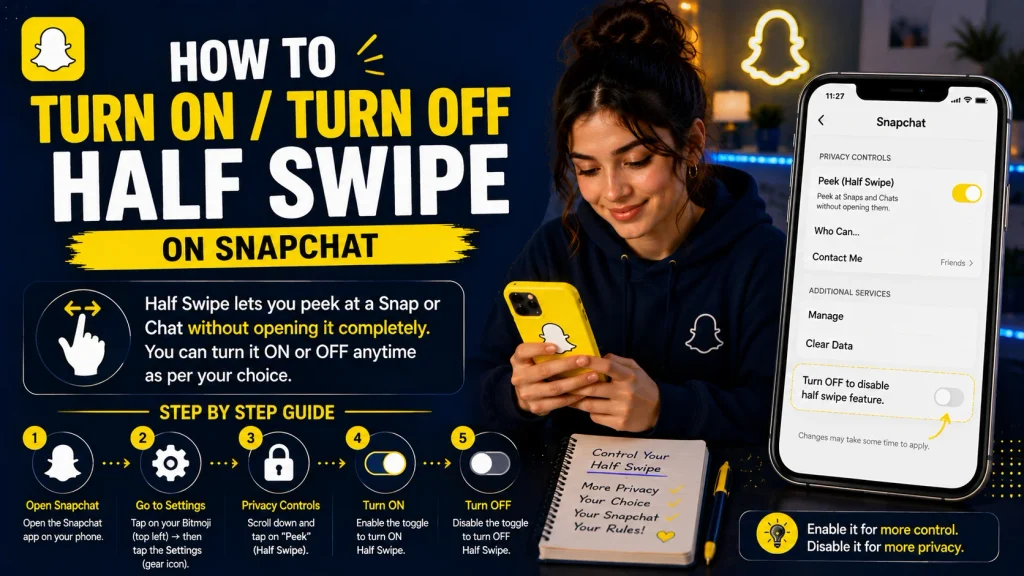
Unlike some features, half swiping isn’t a toggle you switch on or off directly it’s a builtin gesture, though certain settings can affect how easily it works.
Activating Half Swipe in Settings
There isn’t a dedicated half swipe setting inside Snapchat, but ensuring your app is updated and your touch settings are properly configured helps the gesture work as intended.
- Make sure your Snapchat app is fully updated
- Check that touch sensitivity settings are set to default
- Avoid using accessibility features that alter touch gestures
- Test the gesture on a simple one on one chat first
- Ensure your phone’s screen protector isn’t affecting touch
- Restart the app if the gesture feels unresponsive
- Practice slow, controlled holds rather than quick taps
- Confirm you’re using a supported device and OS version
How to Stop or Disable It
Since half swiping is a builtin gesture rather than a toggleable feature, there isn’t a direct way to disable it, but you can avoid triggering it accidentally by adjusting how you interact with chats.
- Tap chats normally instead of holding and dragging
- Avoid long presses on snap or message thumbnails
- Use quick, single taps to open content fully instead
- Be mindful of accidental long presses while scrolling
- Adjust your grip or touch pressure if it triggers often
- Disable haptic touch features if they interfere with taps
- There’s no official in app toggle to remove the gesture
- Report persistent accidental triggers to Snapchat support
Can Someone Tell If You Half Swiped on Snapchat?
One of the most common questions about half swiping is whether the other person can tell you’ve previewed their snap or message.
What the Other Person Sees
When you half swipe correctly, the sender typically does not see any indication that their snap or message was previewed, since it isn’t marked as opened in the same way a full view would be.
- No opened notification is triggered by a proper half swipe
- The snap or message remains marked as unread for them
- No special icon or alert reveals a partial preview occurred
- Works the same in one on one and group conversations
- Sender only sees changes once you fully open the content
- Timing of your view remains hidden from the other person
- No timestamp is generated for a successful half swipe
- Accidental full swipes will trigger a normal opened alert
Difference Between Half Swipe and Opening a Snap
Understanding the distinction between half swiping and fully opening a snap helps explain why the technique is so widely used for discreetly checking content.
- Half swiping shows only a partial, brief preview
- Fully opening reveals the complete content clearly
- Opening triggers an opened status visible to the sender
- Half swiping avoids triggering that opened status
- Fully opening starts any relevant snap timer
- Half swiping does not start or affect snap timers
- Opening is permanent once triggered for disappearing snaps
- Half swiping can be repeated without similar consequences
Half Swipe and Snapchat Plus
Since Snapchat Plus introduced several new features related to viewing snaps, it’s a common question whether half swiping is tied to this paid subscription.
Is Half Swipe a PlusOnly Feature?
No, half swiping itself is a free, builtin gesture available to all Snapchat users, and it is not restricted to Snapchat Plus subscribers in any way.
- Available to all users regardless of subscription status
- Not listed as an official Snapchat Plus exclusive feature
- Works the same for free and paid accounts alike
- No additional cost required to use the gesture
- Confusion often comes from other Plusrelated peek features
- Snapchat Plus focuses on different viewing enhancements instead
- Half swipe has existed independently of the Plus rollout
- No special activation needed within Plus settings
What Snapchat Plus Adds to Peeking
While half swiping is free, Snapchat Plus does offer some additional features related to viewing activity and snap interactions that are sometimes confused with the half swipe gesture itself.
- Plus offers features like Best Friend visibility insights
- Provides additional customization for chat and profile
- Includes priority story viewing in some cases
- Offers exclusive app icons and profile customizations
- Does not replace or enhance the half swipe gesture directly
- Focuses more on account customization than peeking specifically
- Worth checking Snapchat’s official page for current Plus perks
- Half swipe remains unaffected whether or not you subscribe
Conclusion
Half swiping on Snapchat, officially known as PeekaPeek, is a simple but handy gesture that lets you preview snaps and messages without the sender knowing you’ve seen them. Whether you’re using an iPhone, Android device, or accessing Snapchat through a browser or desktop app, the core technique stays the same: a careful pressand hold that stops just short of a full open. It’s completely free for all users, unrelated to Snapchat Plus, and if it stops working after an update, a quick app refresh or cache clear usually solves the problem. With the steps in this guide, you can confidently half swipe on any device without accidentally opening a snap you weren’t ready to reveal.
How do you half swipe on Snapchat?
Press and hold on a chat or snap thumbnail, then slightly drag without fully releasing, which reveals a partial preview without marking it as opened.
Can you half swipe on Snapchat on a computer?
Yes, on Snapchat Web or the desktop app, you can click and hold on a chat thumbnail to achieve the same partial preview effect.
Does half swiping show up as opened?
No, a properly executed half swipe does not trigger the opened notification that a full view would normally show the sender.
How do I turn off half swipe on Snapchat?
There’s no official toggle to disable it, since it’s a builtin gesture; avoiding long presses on chats prevents it from triggering accidentally.
Pingback: Ghost Mode on Snapchat | What It Is & How to Turn It On