Snapchat’s sticker feature is one of the most fun ways to customize a snap, letting you add emojis, cutout images, and custom creations directly onto your photos and videos. But over time, your sticker panel can get cluttered with recently used stickers, saved favorites, and custom cutouts you no longer want, and Snapchat doesn’t make the deletion process particularly obvious. Depending on the type of sticker, whether it’s one you just placed on a snap, a recently used one showing up in your search, or a custom cutout you created from a photo, the removal steps can differ slightly. In this guide, we’ll walk you through exactly how to delete stickers on Snapchat, covering every sticker type, how to clear your entire sticker history at once, and whether the process works any differently on iPhone versus Android. Read more articles about Snapplanets.
What Types of Stickers Can You Delete on Snapchat?
Before diving into the removal steps, it helps to understand that Snapchat actually has a few different categories of stickers, since each one is managed slightly differently within the app.
Recent/Used Stickers vs Saved Stickers
Snapchat automatically keeps track of stickers you’ve recently used in a dedicated Recents section, separate from stickers you’ve manually saved or favorited for easier future access, and these two categories require different deletion methods.
- Recent stickers populate automatically based on usage
- Saved or favorite stickers are added manually by you
- Both appear in different sections of the sticker panel
- Recent stickers update constantly as you use new ones
- Saved stickers remain fixed until you remove them yourself
- Each requires a slightly different removal process
- Both categories are specific to your individual account
- Neither affects stickers already placed on sent snaps
Custom and CutOut (Cameo) Stickers
Beyond standard emoji style stickers, Snapchat also lets you create custom stickers by cutting objects or people out of your own photos, which are stored separately and often require their own specific deletion steps.
- Created by selecting and cutting an object from a photo
- Stored in a separate custom stickers section
- Function independently from standard emoji stickers
- Can be reused repeatedly once created and saved
- Require manual deletion since they don’t expire automatically
- Sometimes referred to as cutout or cameo stickers
- Take up personal storage space within your account
- Removal doesn’t affect the original photo they came from
How to Delete a Sticker From a Snap Before Sending
The simplest and most immediate sticker removal happens while you’re still editing a snap, before it’s been sent or posted anywhere.
Removing a Sticker While Editing
If you’ve just added a sticker to a photo or video and want to remove it before sending, Snapchat makes this quick and easy directly within the editing screen.
- Open the snap with the sticker still in edit mode
- Tap and hold directly on the sticker you want to remove
- Drag the sticker down toward the trash icon at the bottom
- Release once the sticker turns red or the trash icon activates
- The sticker disappears immediately from your snap
- Works the same for text, emoji, and custom stickers
- Can be repeated for multiple stickers on the same snap
- Doesn’t affect any other stickers still placed on the snap
Undoing an Accidentally Placed Sticker
If you added a sticker by mistake and want a faster way to remove it than dragging it to the trash, Snapchat also offers a quick undo option right after placement.
- Look for the undo arrow icon in the editing toolbar
- Tap it immediately after placing the sticker
- This removes the most recently added sticker instantly
- Works only for the most recent action, not older edits
- Faster than manually dragging the sticker to the trash
- Doesn’t work once you’ve moved on to other edits
- Available on both photo and video snap editing screens
- A useful shortcut for quick, accidental placements
View more articles :
- What Does Media Upload Mean on Snapchat
- Can You Have Multiple Yellow Hearts on Snapchat
- How Do I Know If Someone Blocked Me on Snapchat
- How to Delete Stickers on Snapchat
- What Does a Yellow Heart Mean on Snapchat
- How to Unpin Someone on Snapchat
- What Does the Green Dot Mean on Snapchat
- How to Allow Camera Access on Snapchat
- What Does Time Sensitive Mean on Snapchat
- What Does Followers Mean on Snapchat
How to Delete Recently Used Stickers on Snapchat
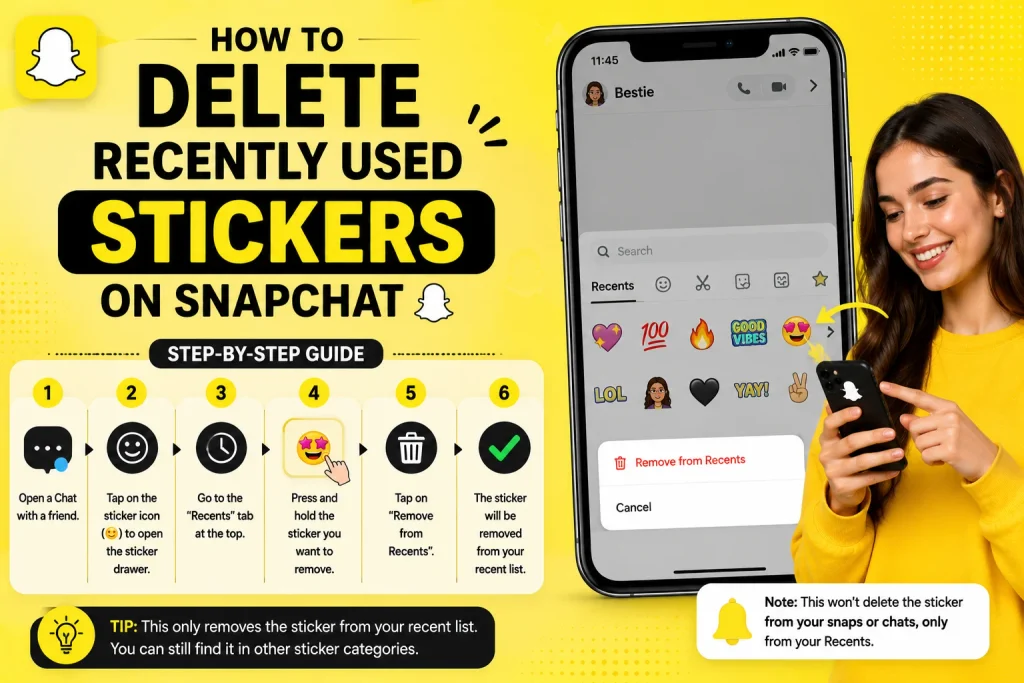
Beyond individual snaps, Snapchat also keeps a running history of stickers you’ve recently used, which appears automatically when browsing the sticker panel.
StepbyStep Instructions
Removing individual stickers from your recently used history involves a simple press and hold gesture within the sticker search panel itself.
- Open the camera screen and start editing a new snap
- Tap the sticker icon to open the sticker panel
- Scroll to the Recently Used section at the top
- Press and hold on the specific sticker you want removed
- Select the delete or remove option from the menu
- Confirm the removal if a prompt appears
- The sticker disappears from your recent history
- Repeat for any additional recent stickers you want gone
Why Recent Stickers Keep Reappearing
If a sticker keeps showing up in your recents despite deleting it, this is usually because using that same sticker again automatically reads it to the recently used list, since the feature is designed to track ongoing usage.
- Using a sticker again automatically reads it to recents
- The list is designed to reflect your most current habits
- Deletion only removes it until it’s used again
- Not a bug, but the intended behavior of the feature
- Avoid reusing a sticker if you want it gone permanently
- Clearing your entire history offers a more permanent reset
- Recent stickers naturally shift as your usage patterns change
- Frustration here usually comes from repeated accidental use
How to Delete Saved or Favorite Stickers on Snapchat
Stickers you’ve manually saved or favorited are stored separately from your recent history, requiring a slightly different removal process.
StepbyStep Instructions
Deleting a saved or favorite sticker follows a similar press and hold method, but within the dedicated saved stickers section rather than the recents panel.
- Open the sticker panel from the snap editing screen
- Navigate to the Saved or Favorites section specifically
- Press and hold on the sticker you want to delete
- Select the remove or delete option from the menu
- Confirm the action if prompted by the app
- The sticker is removed from your saved collection
- Repeat this process for each additional saved sticker
- Restart the app if the option doesn’t appear right away
Difference Between Saved and Recent Stickers
Saved stickers remain in place indefinitely until manually removed, unlike recent stickers, which shift automatically based on your latest activity, making saved stickers a more stable, intentional collection.
- Saved stickers stay fixed until you delete them yourself
- Recent stickers shift automatically with new usage
- Saving requires a deliberate action, unlike recents
- Saved stickers won’t disappear from disuse alone
- Offers more control over your longterm sticker collection
- Useful for stickers you use often and want quick access to
- Doesn’t get cluttered the way recents can over time
- Best suited for stickers you plan to reuse frequently
How to Delete Custom Cut Out Stickers on Snapchat
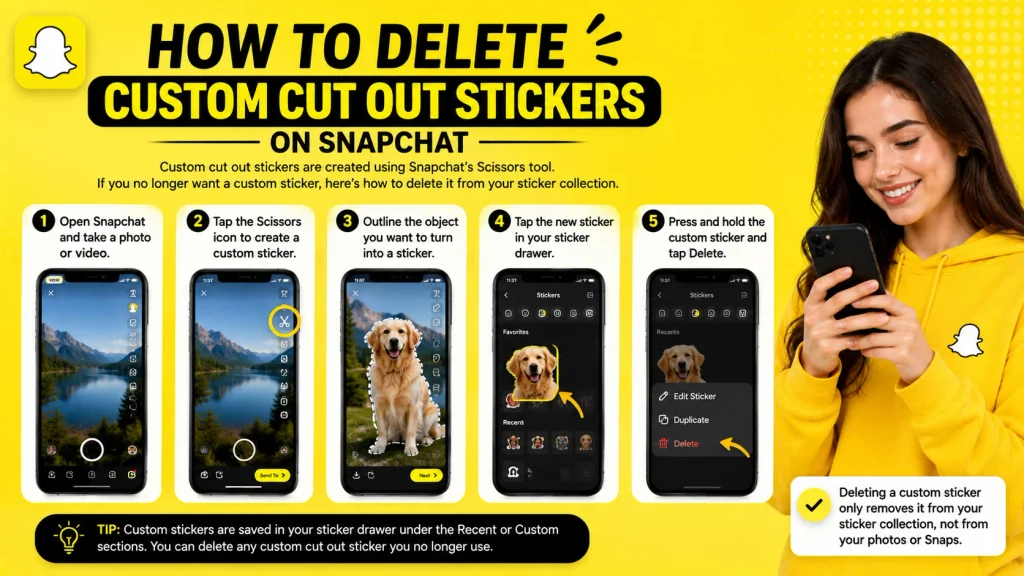
Custom stickers created from your own photos require their own removal process, separate from standard emojistyle stickers.
StepbyStep Instructions
Removing a custom cutout sticker follows a similar interaction pattern, accessed through the same sticker panel where your custom creations are stored.
- Open the sticker panel while editing a snap
- Scroll to the section containing your custom stickers
- Press and hold on the specific cutout sticker
- Select delete or remove from the menu that appears
- Confirm the deletion if a prompt shows up
- The custom sticker is permanently removed from that section
- Repeat for any other custom stickers you want deleted
- Original photos used to create them remain unaffected
Deleting Stickers You’ve Created From Photos
Since custom stickers are generated from your own photo library, it’s worth noting that deleting the sticker itself has no effect on the original photo it was created from, as the two remain entirely separate.
- Deleting a sticker doesn’t delete the source photo
- Original images remain untouched in your camera roll
- Custom stickers exist as separate, standalone files
- Recreating a deleted sticker requires cutting it out again
- No batch option exists specifically for custom stickers alone
- Each custom sticker must be deleted individually
- Applies the same way regardless of how the photo was sourced
- Storage space is freed up once the sticker is removed
How to Delete All Stickers on Snapchat at Once
If your sticker panel has become too cluttered to manage individually, Snapchat also allows you to clear your entire sticker history in one action.
Clearing Your Entire Sticker History
Rather than deleting stickers one by one, you can clear your full sticker search and usage history at once through Snapchat’s account settings, offering a faster reset for a heavily cluttered panel.
- Open Snapchat and go to your account Settings
- Scroll to find the Clear Sticker History option
- Tap it to begin the clearing process
- Confirm the action when prompted by the app
- Your entire recent and search sticker history clears at once
- Much faster than deleting each sticker individually
- Useful if your panel has become significantly cluttered
- Sticker panel will rebuild naturally as you use the app again
What Gets Removed vs What Stays
It’s worth understanding that clearing your sticker history primarily affects recently used and searched stickers, while manually saved favorites and custom cutout stickers may require separate, individual removal.
- Clears recently used and searched sticker history
- Saved or favorited stickers may not be included automatically
- Custom cutout stickers typically require individual deletion
- Doesn’t affect stickers already placed on previously sent snaps
- Doesn’t impact your Memories or saved snap content
- A good first step before manually clearing saved stickers
- Confirm results afterward to check what still remains
- Combine both methods for a fully clean sticker panel
How to Delete Stickers on iPhone vs Android
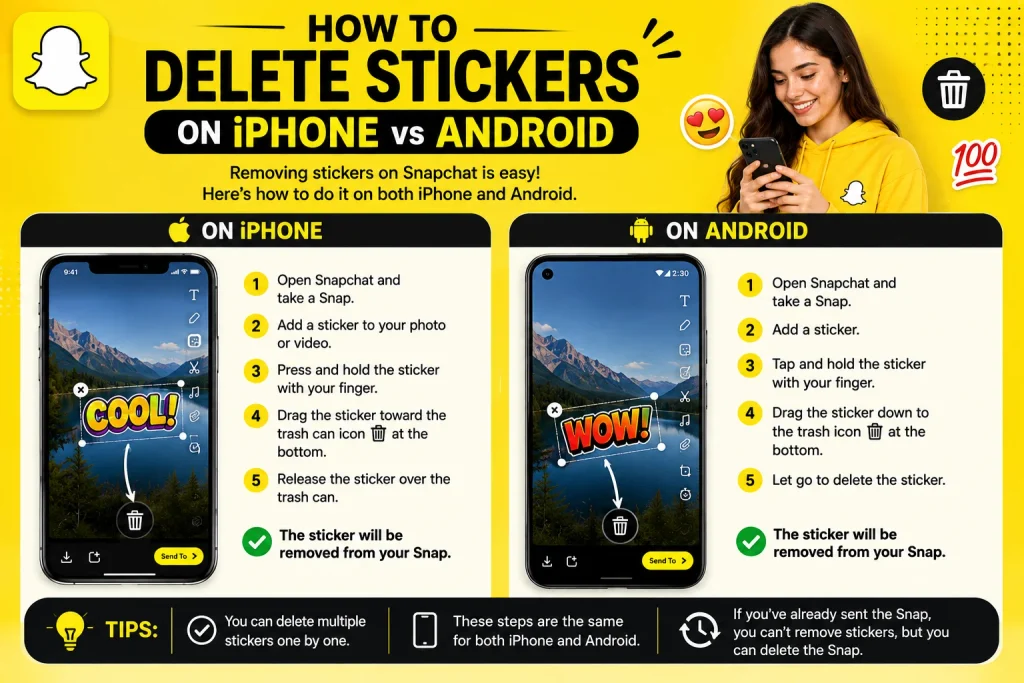
Since Snapchat is used across both major mobile platforms, it’s worth confirming whether sticker deletion works any differently depending on your device.
Any Differences on iPhone
On iPhone, sticker deletion follows the exact same in app process described throughout this guide, since it’s handled entirely within Snapchat’s own interface rather than relying on any iOSspecific settings.
- No iPhone specific sticker deletion process exists
- Handled entirely within Snapchat’s own app interface
- Same press and hold gesture works consistently
- Not affected by iOS system settings in any way
- Consistent behavior across supported iPhone models
- No additional permissions required for this feature
- Works the same across current iOS app versions
- Any differences are typically just app version related
Any Differences on Android
Similarly, Android users follow the identical process, since sticker management is built into Snapchat’s app itself rather than depending on the device’s operating system.
- Functions identically to the iPhone sticker deletion process
- Not tied to any Android specific settings or permissions
- Same gestures and menu options appear consistently
- Works the same across different Android phone brands
- No special app version required beyond staying updated
- Any inconsistencies usually stem from outdated app versions
- Updating the app resolves most platform related quirks
- Overall experience remains consistent across both platforms
Conclusion
Deleting stickers on Snapchat is a simple process once you know where to look, whether you’re removing a sticker misedit, clearing out your recently used history, deleting a saved favorite, or getting rid of a custom cutout creation. For a heavily cluttered sticker panel, clearing your entire sticker history through Settings offers a faster reset, though saved and custom stickers typically still need to be removed individually. The process works identically on both iPhone and Android, so once you’ve learned these steps, you’ll be able to keep your sticker panel organized no matter which device you’re using.
How do I delete stickers on Snapchat?
Press and hold on the sticker within the sticker panel, then select the delete or remove option, which works for recent, saved, and custom stickers.
How do I delete all stickers on Snapchat at once?
Go to Settings and select Clear Sticker History to remove your recently used and searched stickers in one action, though saved favorites may need separate removal.
How do I delete recently used stickers on Snapchat?
Open the sticker panel, go to the Recently Used section, press and hold the sticker, and select delete to remove it from your recent history.
Can I delete a custom sticker I made on Snapchat?
Yes, press and hold on the custom cutout sticker in your sticker panel and select delete, which removes it without affecting the original photo.