If you’ve been viewing a snap and noticed a small Media Upload label sitting in the upper left corner, you’re definitely not the only one who’s paused to wonder what it actually means. It’s a small but noticeable detail that shows up fairly often, especially as more users share photos and videos that weren’t taken live within the app itself. Since Snapchat built its reputation around real time, in the moment content, this label can feel a little confusing the first time you see it, especially if you’re used to assuming every snap was just captured on the spot. In this guide, we’ll break down exactly what Media Upload means on Snapchat, what triggers it, how it behaves differently on stories versus individual snaps, whether you can remove it, and how it works on iPhone specifically. Read more articles about Snapplanets .
What Does Media Upload Mean on Snapchat?
The Media Upload label is Snapchat’s way of flagging content that didn’t come from a live, in app capture, giving viewers a bit of extra context about what they’re looking at.
The Basic Definition
According to Snapchat’s own support documentation, the Media Upload label means the snap you’re viewing contains media, either a photo or video, that was previously captured and saved to the device’s camera roll or gallery before being sent, rather than taken in real time through the app’s camera.
- Confirmed directly by Snapchat’s official support page
- Indicates the media wasn’t captured live in the app
- Applies to both photos and videos equally
- Media originated from the camera roll or gallery
- Can also apply to content pulled from another platform
- Doesn’t affect the snap’s other features or functionality
- Automatically applied, not something the sender controls
- A simple transparency marker, not a warning or restriction
Where the Label Appears on a Snap
The Media Upload label specifically shows up in the upper left corner of a snap while it’s being viewed, appearing as a small, unobtrusive tag rather than a large or attention grabbing warning.
- Located in the upper left corner of the snap
- Displayed only while the snap is actively being viewed
- Small and subtle rather than prominently displayed
- Doesn’t cover or interfere with the snap’s content
- Appears consistently across supported app versions
- Visible to whoever is viewing the snap, not just the sender
- Doesn’t require tapping or interacting to reveal it
- Disappears once the snap itself is no longer being viewed
Why Does Snapchat Show the Media Upload Label?
Understanding the reasoning behind this label helps explain why Snapchat added it in the first place, rather than just leaving uploaded content indistinguishable from live snaps.
Live Snaps vs Camera Roll Content
Snapchat draws a clear distinction between snaps captured live through the app’s camera and those imported from a device’s camera roll, since the two types of content carry different context about when and how they were originally created.
- Live snaps are captured directly within the app itself
- Camera roll content was captured at an earlier, separate time
- The label distinguishes between these two content types
- Helps viewers understand the snap’s true origin
- Doesn’t affect the visual quality of the content itself
- Reflects Snapchat’s broader focus on realtime sharing
- Adds a layer of transparency to how content was made
- Doesn’t apply special restrictions to uploaded content otherwise
The Timestamp That Comes With It
Alongside the Media Upload label, Snapchat also displays a timestamp indicating how long ago the original photo or video was actually taken, based on the metadata attached to that file.
- Timestamp reflects when the media was originally created
- Pulled directly from the file’s existing metadata
- Shown alongside the Media Upload label itself
- Helps clarify exactly how old the content really is
- Doesn’t appear on snaps captured live through the app
- Adds further transparency beyond the label alone
- Metadata accuracy depends on the original file’s data
- Reinforces Snapchat’s broader transparency approach overall
View more articles :
- What Does the X Mean on Snapchat?
- How to Tell If Someone Has Snapchat Plus
- What Do the Planets Mean on Snap
- Is Snapchat Shutting Down
- Snapchat Memories Storage
- What Does the Purple Circle Mean on Snapchat
- What Does NRS Mean on Snapchat
- How to Delete Avatar in Snapchat
- What Does HRU Mean in Text
What Triggers the Media Upload Label?
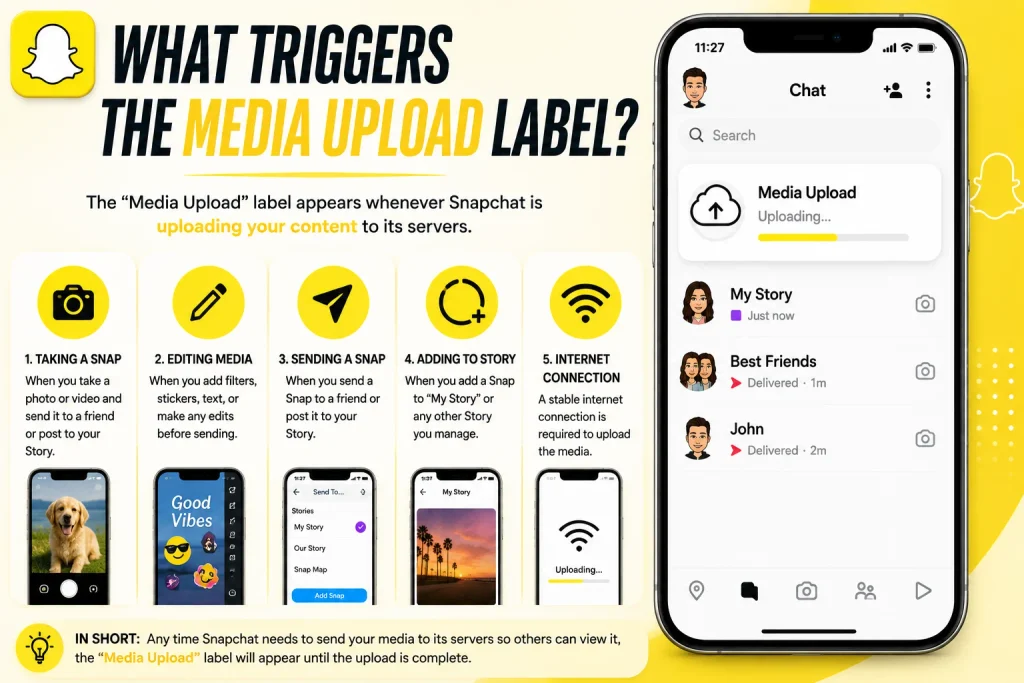
Not every uploaded photo results in this label appearing, so it’s worth understanding the specific actions that cause it to show up on a snap.
Importing Photos or Videos From Your Camera Roll
The most common trigger for this label is manually importing a photo or video from your camera roll while creating a snap, rather than capturing new content directly through Snapchat’s camera at that moment.
- Triggered by using the Import Media option in app
- Applies to both photos and videos from your gallery
- Doesn’t require any special settings to activate
- Happens automatically once camera roll content is selected
- Applies the same way regardless of how old the file is
- Doesn’t matter if the photo was taken using Snapchat originally
- Occurs whether importing for a snap or certain other uses
- One of the simplest and most common ways to trigger it
Using Lenses or Filters on Existing Media
The label can also appear when someone applies a Snapchat Lens or filter to an image that originally came from their camera roll, since the underlying media still counts as previously captured content.
- Applying a Lens to an imported photo still triggers the label
- The creative editing doesn’t change the media’s original source
- Filters and effects don’t override the upload classification
- Still reflects that the base image wasn’t captured live
- Common when using fun or creative Lenses on old photos
- Doesn’t prevent access to most editing tools available
- Shows the label was designed around content origin specifically
- Applies consistently regardless of how heavily it’s edited
What Does Media Upload Mean on a Snap Specifically?
Since the term shows up specifically while viewing individual snaps, it’s worth clarifying exactly what it means in that particular context compared to other parts of the app.
Individual Snaps vs Chat Messages
The Media Upload label appears specifically on snaps viewed within a chat or conversation, marking that particular piece of content as previously captured rather than applying to the entire conversation as a whole.
- Applies to the individual snap being viewed, not the chat
- Other messages in the same conversation aren’t automatically labeled
- Only appears on the specific uploaded photo or video
- Doesn’t affect text messages sent within the same chat
- Each snap is evaluated independently for this label
- Consistent whether sent in a one on one or group chat
- Doesn’t change how the snap is opened or viewed otherwise
- A snapspecific indicator rather than a chatwide setting
Does It Change How the Snap Behaves?
Beyond displaying the label itself, Media Upload snaps generally function the same way as live snaps, including standard viewing time, replay options, and screenshot detection.
- Viewing time limits still apply the same way
- Screenshot detection functions identically either way
- Replay options work the same regardless of the label
- Doesn’t restrict which Lenses or filters can be applied
- Doesn’t affect whether the snap can be saved to Memories
- Functions the same across both photo and video snaps
- The label is purely informational, not functionally limiting
- Doesn’t impact delivery or notification behavior at all
What Does Media Upload Mean on a Snapchat Story?
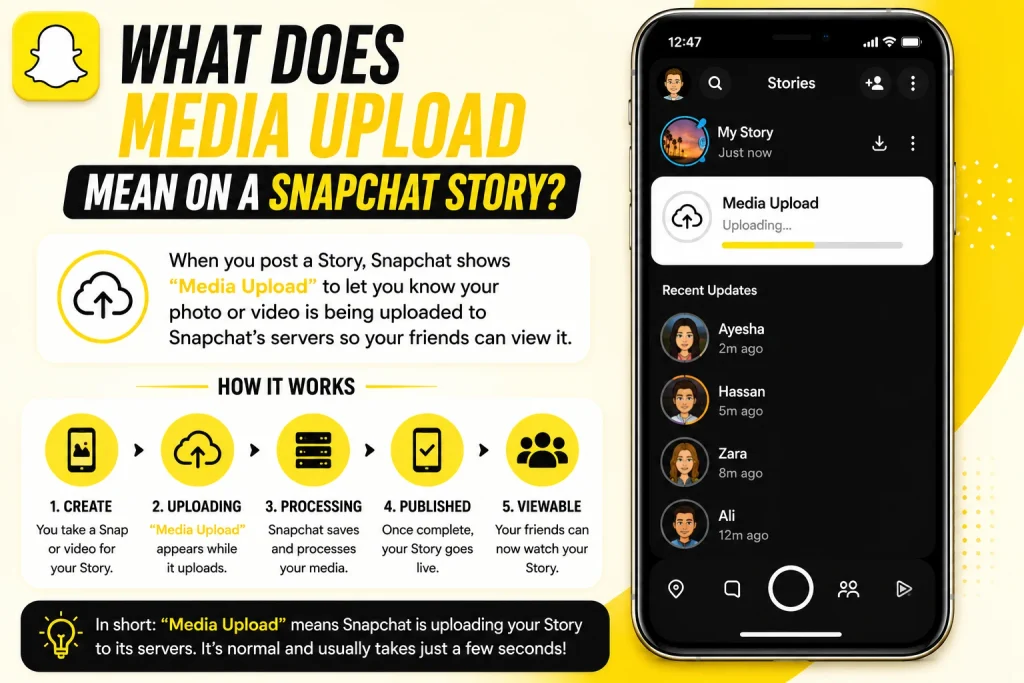
Since stories work a little differently from individual snaps sent in chat, it’s worth covering how this label behaves specifically within that part of the app.
How It Appears on Stories vs Direct Snaps
The Media Upload label can also appear on story content, following the same basic rule of flagging previously captured media, though its visibility can depend on how the content was originally shared.
- Can appear on story posts made from camera roll content
- Follows the same underlying rule as direct snaps
- Visible to anyone viewing that specific story post
- Doesn’t apply to portions of a story captured live
- Each story segment is evaluated individually for the label
- Works the same for both personal and public stories
- Doesn’t change how long the story remains visible
- Adds the same transparency layer as it does for direct snaps
Why Some Uploaded Story Content Skips the Label
According to some user reports, content shared to a story rather than sent directly may not always display the Media Upload label the same way, particularly depending on the app version being used.
- Some reports suggest story uploads may not always show it
- Behavior may vary slightly depending on the app version
- Older app versions have been noted to behave differently
- Snapchat hasn’t detailed every edge case publicly
- Doesn’t guarantee the label will never appear on stories
- Worth keeping your app updated for the most current behavior
- A frequently discussed inconsistency among users online
- Best treated as a known quirk rather than a reliable workaround
Can You Remove the Media Upload Label?
For users hoping to avoid displaying this label altogether, it’s important to understand exactly what Snapchat has confirmed about removing it.
Snapchat’s Official Answer
According to Snapchat’s own support page, it is not possible to remove the Media Upload label once it appears, confirming that this is a fixed, automatic feature rather than an optional setting users can toggle off.
- Officially confirmed as not removable by Snapchat support
- Applies automatically based on the content’s origin
- No in app setting exists to disable the label
- True regardless of account type or subscription status
- Applies the same way to all users without exception
- Not a bug, but an intentional, permanent feature
- No workaround exists once the label has been triggered
- Directly stated in Snapchat’s official help documentation
Ways to Avoid It Appearing at All
While the label can’t be removed once triggered, the only reliable way to avoid it entirely is to capture your photo or video live within the app instead of importing it from your camera roll.
- Capture photos and videos live using Snapchat’s camera
- Avoid using the Import Media option when creating snaps
- Live captures never trigger the Media Upload label
- Applies the same avoidance method for both snaps and stories
- Doesn’t require any special settings to achieve this
- Simplest and most reliable method confirmed to work
- Doesn’t allow using older, previously saved content instead
- The only real solution, since removal isn’t otherwise possible
Does Media Upload Work the Same on iPhone?
Since Snapchat is used across both iPhone and Android, it’s worth confirming whether this feature behaves any differently depending on your device.
Importing Media Steps on iPhone
On iPhone, triggering the Media Upload label follows the same general process as on any device, using Snapchat’s builtin import feature to select existing camera roll content.
- Open Snapchat and switch to the camera screen
- Tap into Video mode, then select Import Media
- Choose a photo or video from your iPhone’s camera roll
- Confirm your selection to bring it into the editor
- Add stickers, captions, or filters as desired
- Send the snap to trigger the Media Upload label
- Process works the same for individual snaps and stories
- No iPhonespecific settings affect this behavior
Does the Label Look Different on an iPhone?
The Media Upload label itself appears identically on iPhone compared to Android, since it’s a feature built into Snapchat’s app interface rather than tied to any device specific display element.
- No visual differences between iPhone and Android versions
- Same corner placement and label text across both platforms
- Timestamp display works identically on both devices
- Not affected by iOSspecific settings or permissions
- Consistent behavior across supported iPhone models
- Keeping the app updated ensures consistent display
- Reflects Snapchat’s unified design across platforms
- Confirms the feature isn’t an iPhoneexclusive addition
What Are People Saying About Media Upload on Reddit?
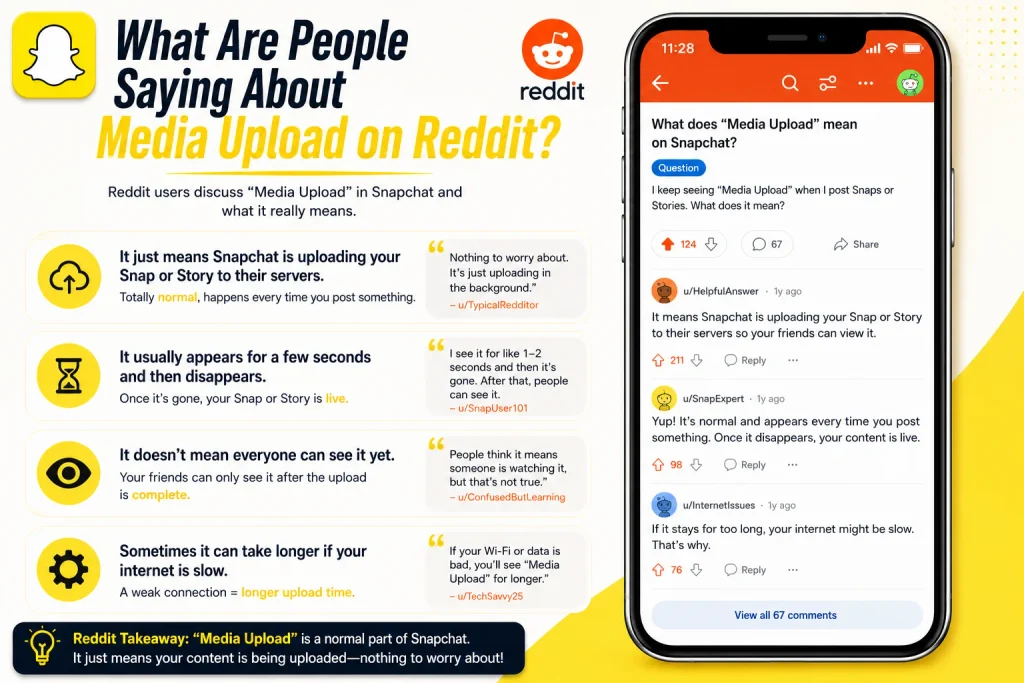
Since this label often catches users off guard, it’s become a fairly common discussion topic within Snapchat focused online communities.
Common Questions From Confused Users
On forums like Reddit, many users report first noticing the label without any prior explanation from the app, leading to recurring threads asking what it means and whether it indicates something suspicious.
- Common first reaction is confusion about the label’s meaning
- Many assume it might indicate something suspicious initially
- Recurring threads ask the same basic clarifying questions
- Users often confirm it’s simply about content origin
- Some ask whether it reveals anything about the sender
- Discussions generally conclude it’s a harmless transparency feature
- Reflects a broader lack of in app explanation from Snapchat
- A consistently searched topic across community forums
Why This Label Confuses So Many People
The confusion largely stems from Snapchat not offering a builtin explanation or tooltip when the label first appears, leaving users to search for answers elsewhere rather than finding clarity within the app itself.
- No in app explanation appears when the label is first seen
- Users are left to search externally for clarification
- The label’s plain wording doesn’t explain its full meaning
- New users are especially likely to encounter this confusion
- Longtime users may notice it more as sharing habits evolve
- Reflects a common pattern of unclear in app terminology
- Explains the steady stream of related search queries
- Resolved quickly once the underlying meaning is understood
Conclusion
The Media Upload label on Snapchat simply indicates that a snap contains a photo or video imported from the camera roll rather than captured live through the app, complete with a timestamp showing when the original content was created. While Snapchat has officially confirmed the label can’t be removed once triggered, the only way to avoid it entirely is by capturing content live instead of importing existing media. Whether you’re seeing it on an individual snap or a story post, the label functions the same way across iPhone and Android, serving purely as a transparency feature rather than any kind of restriction. Now that you understand exactly what triggers it and why it’s there, you can view or send snaps with a clearer sense of what that small label actually means.
What does media upload mean on Snapchat?
It means the snap contains a photo or video that was previously saved to the camera roll and imported, rather than captured live through the app.
Why does my snap say media upload?
This label appears whenever content is imported from your camera roll instead of being captured in real time using Snapchat’s own camera.
Can I remove the media upload label?
No, Snapchat has confirmed this label cannot be removed once it appears, since it’s an automatic, permanent feature tied to the content’s origin.
Does media upload mean the snap is old?
Not necessarily old, but it does mean the media was captured before being sent, and a timestamp shows exactly how long ago it was taken.
Pingback: How to Delete Stickers on Snapchat (All Methods Explained)
Pingback: GTS Meaning on Snapchat | What It Actually Stands For
Pingback: What Does FML Stand For? Full Meaning & How It's Used
Pingback: What Does DND Mean on Snapchat? Full Explanation
Pingback: What Does Followers Mean on Snapchat? Full Explanation
Pingback: What Does NRS Mean on Snapchat? Meaning, Uses & Examples
Pingback: Is Snapchat Shutting Down? The Truth Explained
Pingback: What Does the X Mean on Snapchat? All Reasons Explained