If you’ve pinned a conversation on Snapchat and now want to move it back to its normal spot in your chat list, unpinning it only takes a couple of taps once you know exactly where to look. Pinning is a handy feature for keeping your most important conversations at the very top of your chat screen, but Snapchat doesn’t always make the unpin option obvious, especially since the app’s layout has shifted slightly with recent updates. Adding to the confusion, some users have run into unrelated issues, like accidentally getting blocked after pinning a conversation, which has nothing to do with the pin feature itself but still causes plenty of mixups. In this guide, we’ll walk you through exactly how to unpin someone on Snapchat, step by step on iPhone and Android, what changed with recent updates, whether unpinning notifies the other person, and how to fix common issues if the option isn’t working as expected. Read more articles about Snapplanets.
What Does Pinning a Conversation Mean on Snapchat?
Before unpinning, it helps to understand exactly what pinning does in the first place, since this affects how the feature behaves and why you might want to reverse it. Pinning is a simple organizational tool built into Snapchat’s chat screen, and understanding its purpose makes the unpin process much more intuitive once you’re ready to use it.
How Pinning Works
Pinning a conversation on Snapchat moves that specific chat to the very top of your chat list, keeping it fixed in place above your other conversations regardless of who messages you most recently, making it easy to find without scrolling.
- Moves a chat to the top of your conversation list
- Keeps it fixed there regardless of new messages elsewhere
- Doesn’t change anything about the conversation itself
- Works the same for individual chats and group chats
- Multiple conversations can be pinned simultaneously
- Doesn’t notify the other person that you’ve pinned them
- Purely a personal organizational feature on your end
- Easily reversible at any time through the same menu
Why People Pin Conversations
People typically pin conversations to keep their most important or frequently used chats easily accessible, avoiding the need to scroll through a long list of conversations every time they want to message that person.
- Keeps frequently used chats quickly accessible
- Useful for close friends, family, or important contacts
- Avoids scrolling through a long, cluttered chat list
- Helps organize conversations during busy periods
- Common for staying on top of an active group chat
- Doesn’t affect notification settings for that conversation
- Works well alongside Snapchat’s other organizational features
- Simple way to prioritize specific relationships visually
How to Unpin Someone on Snapchat (Step by Step)
Once you’re ready to remove a conversation from its pinned spot, the process is quick and works almost identically on both iPhone and Android, since it’s handled entirely within Snapchat’s own chat screen rather than relying on device specific settings.
Steps on iPhone
On iPhone, unpinning a conversation involves a simple press and hold gesture directly on the chat screen, which brings up a menu with the unpin option included.
- Open Snapchat and go to your main chat screen
- Locate the pinned conversation near the top of the list
- Press and hold on that conversation until a menu appears
- Look for the Unpin Conversation option in the menu
- Tap Unpin Conversation to confirm the action
- The chat will move back to its normal chronological position
- Repeat these steps for any other pinned conversations
- Restart the app if the option doesn’t appear immediately
Steps on Android
The Android process closely mirrors the iPhone steps, using the same press and hold gesture to access the unpin option from within the chat list.
- Open Snapchat and navigate to your chat screen
- Find the pinned conversation you want to unpin
- Press and hold on the conversation thumbnail
- Select Unpin Conversation from the menu that appears
- Confirm the action if a prompt asks you to
- The conversation returns to its normal position in the list
- Repeat for additional pinned chats as needed
- Update the app if the menu option seems to be missing
View more articles :
- What Does the X Mean on Snapchat?
- How to Tell If Someone Has Snapchat Plus
- What Do the Planets Mean on Snap
- Is Snapchat Shutting Down
- Snapchat Memories Storage
- What Does the Purple Circle Mean on Snapchat
- What Does NRS Mean on Snapchat
- How to Delete Avatar in Snapchat
- What Does HRU Mean in Text
How to Pin and Unpin Someone on Snapchat
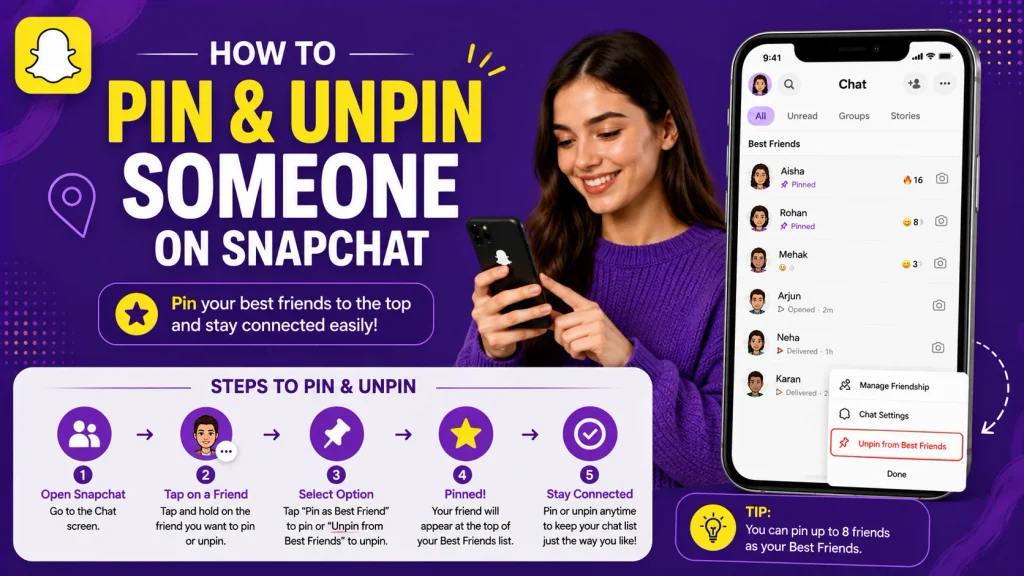
Since pinning and unpinning use the same basic gesture, it’s worth understanding how the two actions relate, especially if you plan on switching a conversation’s pinned status back and forth over time.
Pinning a New Conversation
To pin a conversation in the first place, you’ll use the same press and hold gesture on the chat screen, selecting Pin Conversation instead of the unpin option to move that chat to the top of your list.
- Press and hold on the conversation you want to pin
- Select Pin Conversation from the menu that appears
- The chat immediately moves to the top of your list
- No limit is enforced on how many chats you can pin
- Pinned chats stay in place until manually unpinned
- Works the same for both individual and group chats
- Doesn’t require any additional confirmation step
- Can be done immediately after unpinning if needed again
Switching Between Pinned Chats
If you have multiple pinned conversations, you can freely pin and unpin different chats over time, allowing you to adjust which conversations stay prioritized at the top of your list as your needs change.
- Multiple conversations can be pinned at the same time
- Order among pinned chats may shift based on recent activity
- Unpinning one chat doesn’t affect the others you’ve pinned
- Easy to reorganize priorities as your conversations change
- No cooldown period exists between pinning and unpinning
- Works smoothly even with frequent adjustments
- Doesn’t impact message history for any pinned or unpinned chat
- Useful for temporarily prioritizing timesensitive conversations
How to Unpin a Conversation With the New Snapchat Update
Snapchat periodically updates its chat interface, which can occasionally shift where certain options appear or how the gesture feels compared to older versions of the app.
What Changed With Recent Updates
With more recent Snapchat updates, some users have noticed slight changes to the chat screen layout, which can affect exactly where the press and hold menu appears or how quickly it responds compared to earlier app versions.
- Chat screen redesigns can shift menu positioning slightly
- Some updates require a slightly longer press to trigger the menu
- New animations may briefly delay the menu from appearing
- Interface changes occasionally reposition the unpin option
- Older tutorials may not perfectly match the current layout
- Checking for app updates helps ensure the latest interface
- Beta versions may behave differently than stable releases
- Core unpin functionality remains consistent despite changes
Troubleshooting If the Option Isn’t There
If the unpin option doesn’t appear when you press and hold a conversation, there are a few quick troubleshooting steps that typically resolve the issue without needing to contact support.
- Update Snapchat to the latest available version
- Restart your phone to clear temporary display glitches
- Try holding the conversation slightly longer than usual
- Close and reopen the app before trying again
- Clear the app’s cache if the issue continues
- Log out and back into your account as a last resort
- Reinstall the app if nothing else resolves the issue
- Check community forums for known updaterelated bugs
Does Unpinning Someone Notify Them?
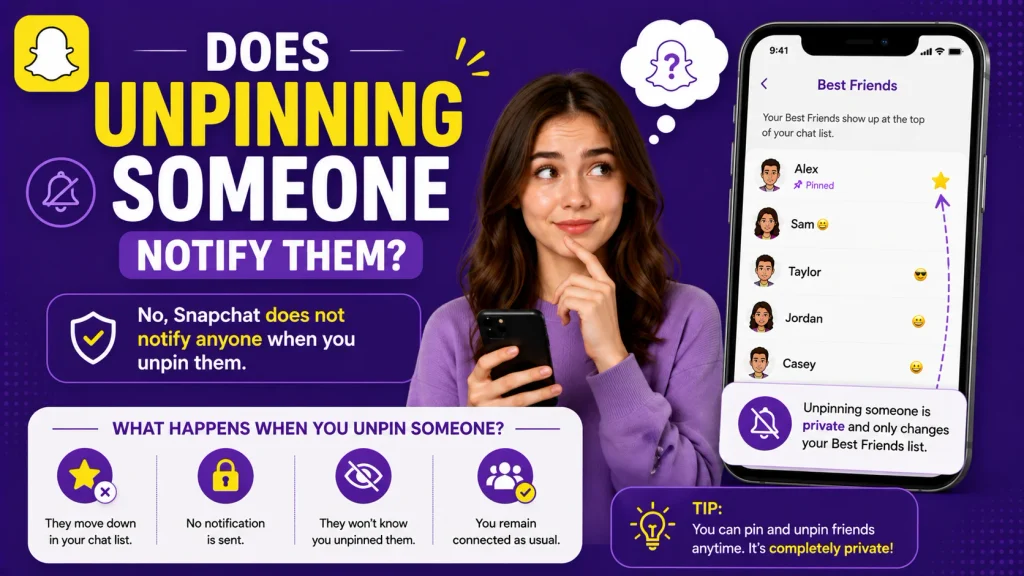
A common concern when unpinning a conversation is whether the other person is somehow notified or made aware that you’ve changed their pinned status.
What the Other Person Sees
Unpinning a conversation is a private, personal action that only affects how your own chat list is organized, meaning the other person receives no notification, alert, or indication that you’ve unpinned them.
- No notification is sent when you unpin a conversation
- The action only affects your own personal chat list view
- The other person’s chat list remains completely unaffected
- No icon or visible change appears on their end
- Works the same whether pinning or unpinning a chat
- Applies equally to individual and group conversations
- Entirely private and unrelated to their account activity
- Safe to unpin without worrying about them noticing
Difference Between Unpinning and Removing/Blocking
It’s worth clarifying that unpinning a conversation is completely different from removing a friend or blocking someone, since unpinning only affects organization, while removing or blocking changes your actual connection and ability to communicate.
- Unpinning only changes chat list organization, nothing else
- Removing a friend ends your connection on the app entirely
- Blocking prevents all communication between both accounts
- Unpinned conversations remain fully accessible afterward
- Message history stays intact regardless of pin status
- Blocking or removing requires separate, distinct actions
- Confusing the two can lead to unnecessary worry
- Unpinning is reversible and carries no relationship impact
Common Issues When Unpinning on Snapchat
Beyond simple update related glitches, a few other specific issues occasionally come up when users try to manage pinned conversations on Snapchat.
Conversation Won’t Unpin
If a conversation seems stuck in its pinned position despite following the correct steps, it’s usually related to a temporary syncing issue rather than a permanent problem with that specific chat.
- App may need a manual restart to reflect the change
- Poor internet connection can delay the update syncing
- Cached data occasionally causes a pinned chat to stick
- Logging out and back in often resolves the issue
- Reinstalling the app can clear persistent glitches
- Rare server side delays can briefly affect the update
- Trying again after a few minutes often resolves it
- Contacting Snapchat support helps if nothing else works
Accidentally Got Blocked After Pinning
Some users have reported confusion after pinning a conversation and later finding themselves blocked, though this is unrelated to the pin feature itself and typically comes down to a separate action taken by the other person.
- Pinning itself has no connection to blocking functionality
- Being blocked afterward is coincidental, not caused by pinning
- Blocking is always a decision made by the other account
- No feature exists that pins and blocks simultaneously
- Confusion often comes from the timing of both events
- Check if you can still view their Snapchat score or story
- A blocked account typically disappears from your friend list
- Reach out through another platform to confirm if unsure
Unpinning Group Chats vs Individual Conversations
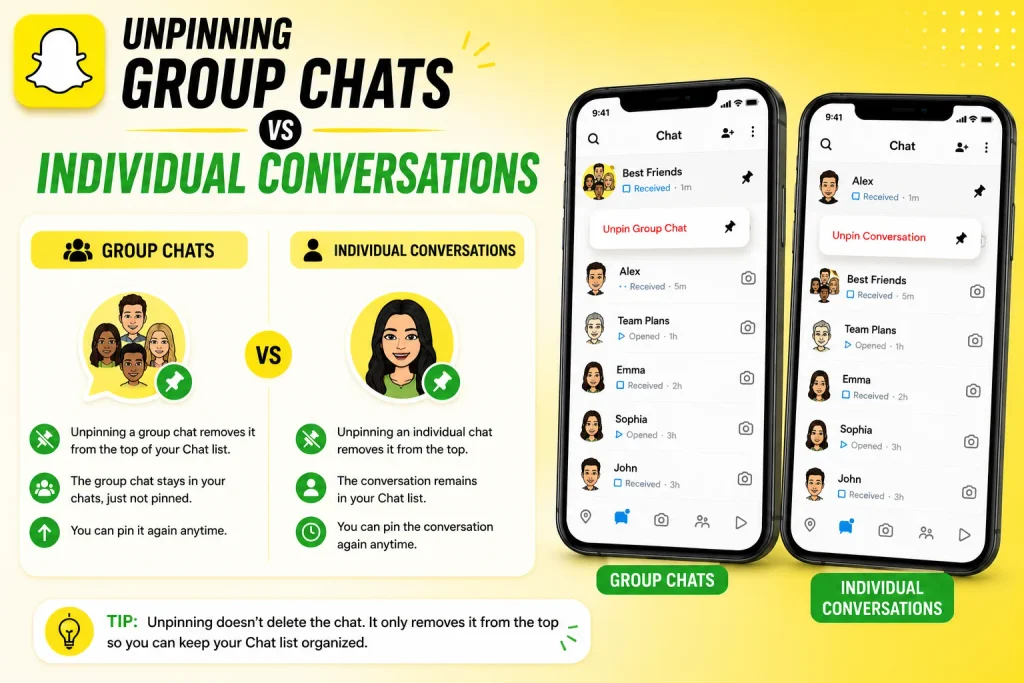
While the core process is the same, it’s worth understanding whether unpinning behaves any differently when it comes to group conversations compared to one on one chats with a single friend.
Does the Process Differ for Group Chats?
Unpinning a group conversation follows the exact same press and hold method as an individual chat, since Snapchat treats pinned status the same way regardless of whether the conversation includes one friend or several.
- Same press and hold gesture works for group chats
- No separate menu or process exists for groups specifically
- Group chat unpinning is entirely a personal, individual action
- Doesn’t affect other group members’ chat organization
- Works the same whether the group is large or small
- No admin permissions are required to unpin a group chat
- Applies equally to newly created and longrunning groups
- Consistent behavior across both chat types overall
Managing Multiple Pinned Group Chats
If you’ve pinned several group chats alongside individual conversations, unpinning them individually gives you full control over exactly which conversations stay prioritized at the top of your list.
- Each pinned group chat can be unpinned independently
- No limit exists on mixing pinned groups and individual chats
- Unpinning one group doesn’t affect others you’ve pinned
- Useful for temporarily prioritizing an active event or plan
- Easy to reorganize as group conversations become less active
- Doesn’t impact notification settings for any group chat
- Works smoothly even with several pinned conversations at once
- Gives full flexibility over your chat list’s overall organization
Conclusion
Unpinning someone on Snapchat is a quick, straightforward process once you know to press and hold the conversation and select the unpin option from the menu, and the steps work almost identically on iPhone and Android. It’s a completely private action that doesn’t notify the other person or affect your friendship in any way, unlike removing or blocking someone, which are entirely separate features. If the option doesn’t appear right away, it’s usually a simple fix like updating the app or restarting your phone rather than a deeper issue. Now that you know exactly how pinning and unpinning work, along with how to troubleshoot common issues, you can manage your Snapchat chat list exactly the way you want.
How do I unpin someone on Snapchat?
Press and hold on the pinned conversation in your chat list, then select Unpin Conversation from the menu that appears.
Does unpinning someone notify them
No, unpinning a conversation is a private action that only changes your own chat list, with no notification sent to the other person.
Why can’t I unpin a conversation on Snapchat?
This is usually caused by a temporary syncing issue or outdated app version, and can typically be fixed by restarting the app or updating it.
What’s the difference between unpinning and removing a friend?
Unpinning only changes how your chat list is organized, while removing a friend ends your connection and ability to communicate on the app.
Pingback: How to Delete Stickers on Snapchat (All Methods Explained)