Your Snapchat avatar, also known as your Bitmoji, shows up almost everywhere on the app your profile, the Snap Map, chat headers, and even inside filters and stickers. While a lot of users enjoy having a personalized cartoon version of themselves, others eventually decide they’d rather remove it, whether for privacy reasons, a cleaner profile look, or simply because they’re not using Snapchat’s avatar features anymore. The tricky part is that Snapchat doesn’t make this option obvious, and a lot of people end up confused about the difference between deleting their avatar, unlinking Bitmoji, or hiding it from their profile. Most existing guides on this topic are videoonly tutorials, which makes it harder to quickly scan for the exact step you need. In this guide, we’ll walk you through exactly how to delete your avatar in Snapchat, step by step, on both iPhone and Android, along with how to remove Bitmoji entirely, what changes afterward, and how to fix common issues if your avatar refuses to disappear.
How to Delete Avatar in Snapchat?
Before deleting your avatar, it helps to understand what it actually is and how it connects to your Snapchat account, since this affects exactly how removal works.
How the Avatar Is Linked to Your Account
Your Snapchat avatar is powered by Bitmoji, a separate app owned by the same parent company, Snap Inc. When you first set up your avatar, Snapchat links your account to a Bitmoji profile, which is why removing it sometimes involves adjusting settings in both places rather than just one.
- Powered by Bitmoji, a Snap Inc.owned app
- Linked to your Snapchat account during setup
- Appears on your profile, chats, and Snap Map
- Used inside stickers, filters, and Snap reactions
- Can be managed from within the Snapchat app itself
- Doesn’t require the separate Bitmoji app to exist
- Syncs automatically once the two accounts are connected
- Tied to your login credentials rather than your device
Why People Choose to Remove It
There are several common reasons users decide to delete or hide their avatar, ranging from personal preference to privacy concerns about how much it reveals about their appearance or location on the map.
- Wanting a simpler, more minimal profile
- Privacy concerns about the avatar on Snap Map
- No longer interested in using Bitmoji features
- Switching to a different personalization style
- Avoiding avatar appearing in shared stickers
- Starting fresh with a new avatar look later
- Preferring a real photo instead of a cartoon avatar
- Reducing how much personal detail friends can see
How to Delete Your Avatar in Snapchat
Deleting your avatar is a straightforward process, though the exact menu path differs slightly depending on whether you’re using an iPhone or an Android device.
StepbyStep on iPhone
On iPhone, you’ll remove your avatar directly through your Snapchat profile settings, which also updates how your Bitmoji appears across the rest of the app almost immediately.
- Open Snapchat and tap your profile icon in the top left
- Tap on your Bitmoji avatar shown at the top of your profile
- Select Edit Avatar or the pencil icon on the avatar screen
- Scroll down and look for the option to delete or reset your avatar
- Confirm the deletion when the popup prompt appears
- Close and reopen the app to confirm the avatar is removed
- Check your profile page to verify the change took effect
- Update the app first if the delete option isn’t visible
StepbyStep on Android
On Android, the steps follow a nearly identical path, though menu wording or icon placement can vary slightly depending on your Snapchat app version.
- Open Snapchat and tap your profile icon at the top
- Tap directly on your Bitmoji avatar image
- Look for the settings or edit option near the avatar
- Find the delete or remove avatar option in the menu
- Confirm you want to delete it when prompted
- Restart the app to make sure the change has applied
- Clear the app cache if the option doesn’t appear right away
- Make sure you’re signed into the correct Snapchat account
How to Remove Bitmoji From Snapchat Without Deleting the App
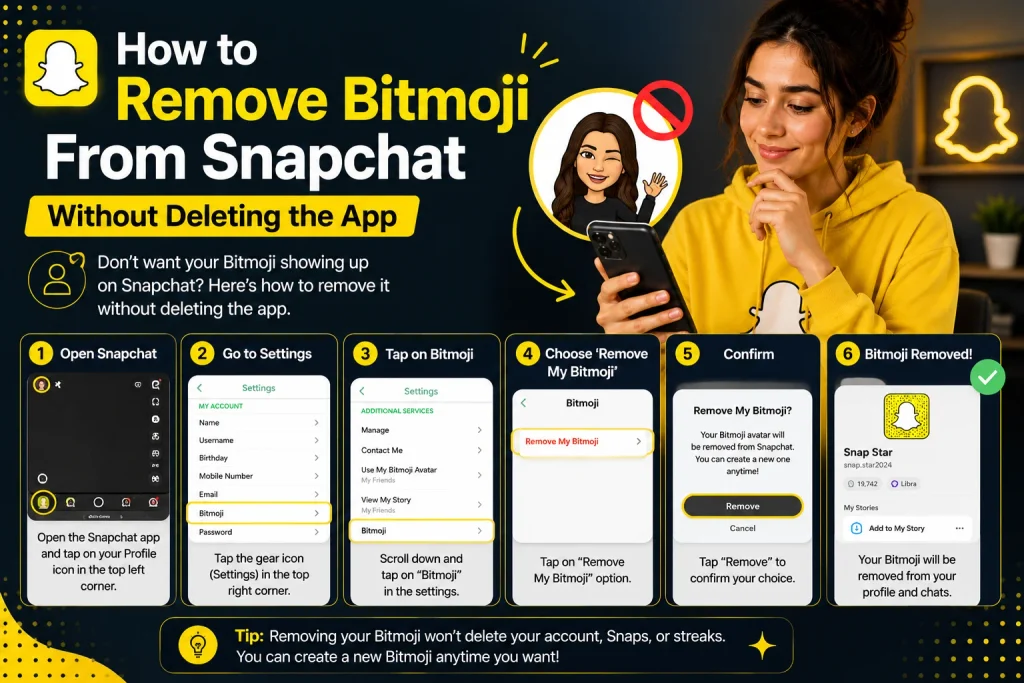
If your goal is to fully disconnect Bitmoji from Snapchat rather than just deleting the avatar image itself, you’ll need to unlink the two accounts instead.
Unlinking Bitmoji From Settings
Unlinking Bitmoji removes the connection between your Snapchat account and your Bitmoji profile entirely, which stops your avatar from syncing or appearing anywhere in the app going forward.
- Open Snapchat and go to your profile settings
- Tap the gear or settings icon in the top right
- Scroll down and select the Bitmoji option
- Tap Unlink or Remove Bitmoji from the menu
- Confirm the action when prompted by the app
- Your avatar will disappear from your profile and chats
- Sign out and back in if the unlink doesn’t apply instantly
- Doublecheck settings saved before closing the app
What Happens to Your Chats and Profile After Removal
Once Bitmoji is unlinked, your profile picture and chat headers revert to a default image or your account’s initial, and your avatar stops appearing in stickers, filters, or the Snap Map location marker.
- Profile picture reverts to a default Snapchat image
- Chat headers no longer display your Bitmoji
- Avatar disappears from Snap Map location markers
- Bitmoji stickers become unavailable in chats
- Friends will also stop seeing your avatar on their end
- Your Bitmoji app account remains separate and unaffected
- Past chats keep old avatar images in message history
- Group chats update to show the default icon as well
How to Delete the Avatar Only From Your Profile (Not Bitmoji App)
Some users don’t want to fully unlink Bitmoji but simply want their avatar hidden or removed from their public Snapchat profile specifically.
Difference Between Deleting and Hiding Your Avatar
Deleting your avatar removes it entirely and often requires creating a new one if you change your mind, while hiding it keeps your Bitmoji intact in the background but stops it from being visible on your profile or to friends.
- Deleting removes the avatar completely from the app
- Hiding keeps the Bitmoji saved but not publicly shown
- Deleting may require rebuilding your avatar from scratch
- Hiding is reversible without losing your original design
- Deleting affects stickers and filters more broadly
- Hiding is a better option if you might want it back later
- Deleting is better for full privacy or a fresh start
- Hiding works well for temporary or situational privacy
Steps to Hide It From Your Profile
If you’d rather hide your avatar without deleting it permanently, Snapchat offers privacy settings that limit who can see your Bitmoji without removing it from your account entirely.
- Go to your Snapchat profile and open settings
- Tap on See My Location or Bitmoji related privacy options
- Adjust visibility settings to limit who sees your avatar
- Turn off Bitmoji visibility on the Snap Map specifically
- Save your changes before exiting the settings menu
- Your avatar remains saved but becomes less visible
- Review friend specific privacy settings if available
- Recheck settings periodically after app updates
Can You Create a New Avatar After Deleting It?
If you delete your avatar but later decide you want one again, Snapchat makes it easy to set up a brand new Bitmoji from scratch.
How to Set Up a New Bitmoji
Creating a new avatar involves the same initial setup process you went through the first time you joined Snapchat, allowing you to fully customize a new look.
- Open Snapchat and tap your profile icon
- Tap Create Avatar or a similar prompt if shown
- Customize your new avatar’s face, hair, and outfit
- Save your new Bitmoji once you’re happy with it
- Your new avatar will sync across the app automatically
- Old avatar data is not restored once deleted
- Adjust skin tone and features for accuracy if desired
- Preview the avatar before finalizing your selection
What Changes and What Stays the Same
While your visual appearance resets, most of your core Snapchat account details, such as your username, friends list, and Snap history, remain completely unaffected by deleting or recreating your avatar.
- Username and account details stay exactly the same
- Friends list and chat history remain fully intact
- Snap streaks are not affected by avatar changes
- Only your Bitmoji appearance resets to default
- New avatar syncs to profile, chats, and map instantly
- Previous avatar designs are not saved for later reuse
- Saved Snaps and memories remain completely untouched
- Account settings like privacy stay exactly as configured
Does Deleting Your Avatar Affect Bit emoji on Other Apps?
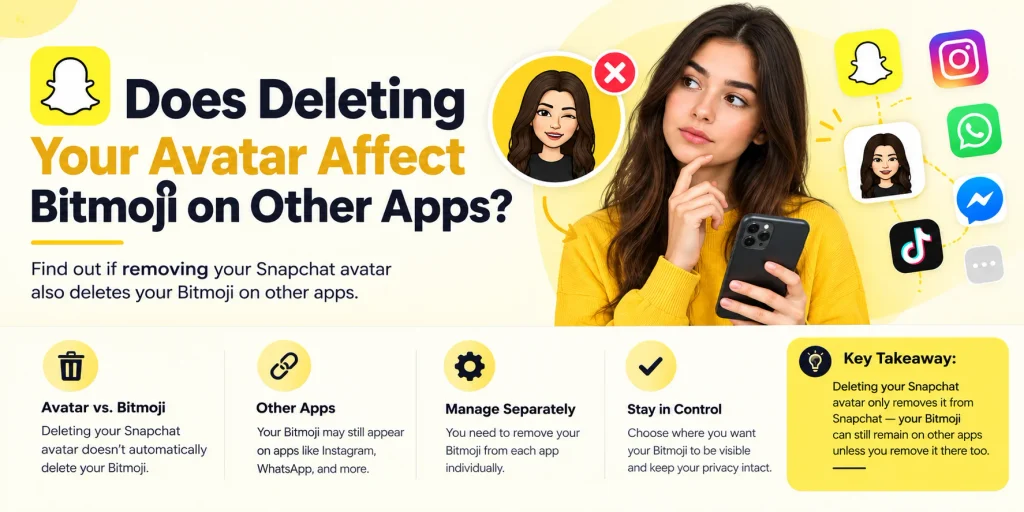
Since Bitmoji works as a standalone app that connects to several platforms beyond Snapchat, it’s worth understanding whether deleting your avatar there impacts your Bitmoji elsewhere.
Bitmoji Across Keyboards, Messages, and Other Apps
Many users also use their Bitmoji as a keyboard sticker pack in apps like Messages, WhatsApp, or Instagram, and deleting your avatar specifically inside Snapchat doesn’t necessarily remove it from these other integrations unless you also unlink or delete it from the Bitmoji app itself.
- Bitmoji keyboard stickers exist independently of Snapchat
- Deleting inside Snapchat may not affect other linked apps
- Full removal requires deleting from the Bitmoji app directly
- Some integrations only update after both apps are adjusted
- Useful to check the Bitmoji app if stickers still appear elsewhere
- Keeps your avatar consistent if you want it removed everywhere
- Keyboard extensions may need to be manually disabled too
- Some third party apps cache old avatar images temporarily
Managing Bitmoji Separately From Snapchat
If your goal is a complete removal across every platform, it’s worth managing your Bitmoji account directly rather than relying only on Snapchat’s settings, since the two apps don’t always sync every change automatically.
- Open the standalone Bitmoji app if it’s installed
- Go to account settings within the Bitmoji app
- Delete or reset your avatar from that app directly
- Check connected apps and keyboards for lingering stickers
- Restart connected apps to confirm the update applied
- Repeat removal steps in Snapchat if the avatar still shows
- Remove the Bitmoji keyboard from your phone’s settings
- Log out of Bitmoji entirely for a complete disconnect
Common Issues When Deleting Your Snapchat Avatar
Sometimes, even after following the steps correctly, users run into small glitches where the avatar doesn’t disappear as expected right away.
Avatar Still Showing After Deletion
If your avatar still appears after deletion, it’s often due to app caching or a delay in syncing changes across Snapchat’s servers, rather than the deletion actually failing.
- App cache not refreshing immediately after changes
- Delay in syncing changes across Snapchat’s servers
- Old avatar cached temporarily on friends’ devices
- App needing a restart to reflect the update
- Outdated app version causing display issues
- Weak internet connection delaying the update
- Background app processes not refreshing properly
- Account syncing issues tied to server side delays
Troubleshooting Fixes
Most avatar display issues can be resolved with a few simple troubleshooting steps rather than needing to contact Snapchat support directly.
- Fully close and reopen the Snapchat app
- Restart your phone to clear temporary cache issues
- Check for and install any pending app updates
- Confirm you have a stable internet connection
- Log out and log back into your Snapchat account
- Wait a few minutes, as server sync can take time
- Reinstall the app if the issue continues persisting
- Contact Snapchat support if nothing else resolves it
Conclusion
Deleting or hiding your avatar in Snapchat is a simple process once you know exactly where to look, whether you want to remove it entirely, unlink Bitmoji completely, or just hide it from your profile while keeping the design saved. The steps are nearly identical on iPhone and Android, and if your avatar doesn’t disappear right away, it’s usually a quick fix related to app caching rather than a real error. It’s also worth remembering that removing your avatar from Snapchat doesn’t always clear it from other apps where Bitmoji is linked, so a quick check of the standalone Bitmoji app can help if stickers or your avatar still show up elsewhere. Now that you know how to delete, hide, and even recreate your Snapchat avatar, you can manage your profile exactly the way you want without any confusion.
How do I delete my avatar in Snapchat?
Go to your profile, tap your Bit emoji avatar, select the edit option, and choose to delete or reset your avatar from the menu.
Does deleting my avatar delete my Bitmoji too?
Deleting your avatar image doesn’t automatically delete your entire Bitmoji account, but unlinking Bitmoji from Snapchat settings will fully disconnect the two.
Can I get a new avatar after deleting the old one?
Yes, you can create a brand new Bitmoji avatar at any time through the same setup process you used when you first joined Snapchat.
Does deleting my avatar affect my friends’ view of me?
Yes, once your avatar is deleted or unlinked, your friends will also stop seeing it in chats, on your profile, and on the Snap Map.